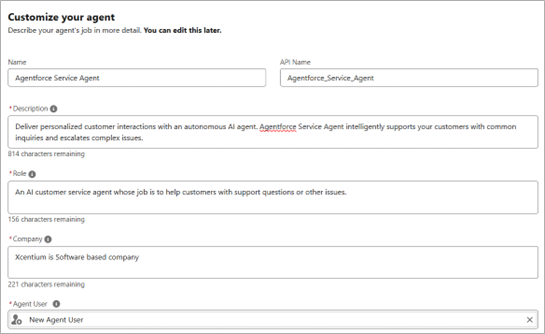

How to Build an AI Service Agent in Salesforce

Salesforce Developer
  • Twitter
  • LinkedIn

Transform Your Customer Support with AI

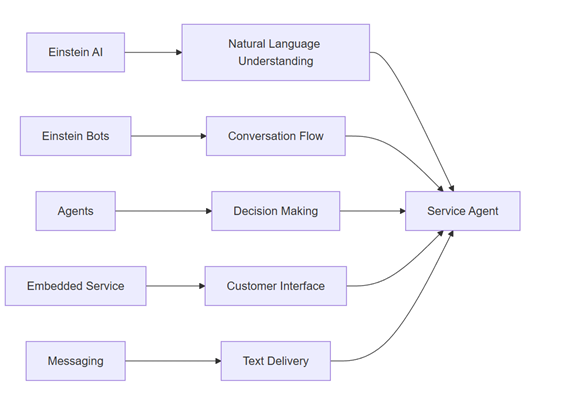
Modern customer service faces a dual challenge: rising ticket volumes and increasing customer expectations for instant responses. Salesforce Service Agents powered by Einstein AI and Agentforce address both by automating routine inquiries while maintaining context and quality.

In this comprehensive guide, you'll build a production-ready Service Agent that can:

  • Handle customer inquiries 24/7
  • Create support cases with consistent data
  • Intelligently route escalations to human agents
  • Maintain conversation context across channels
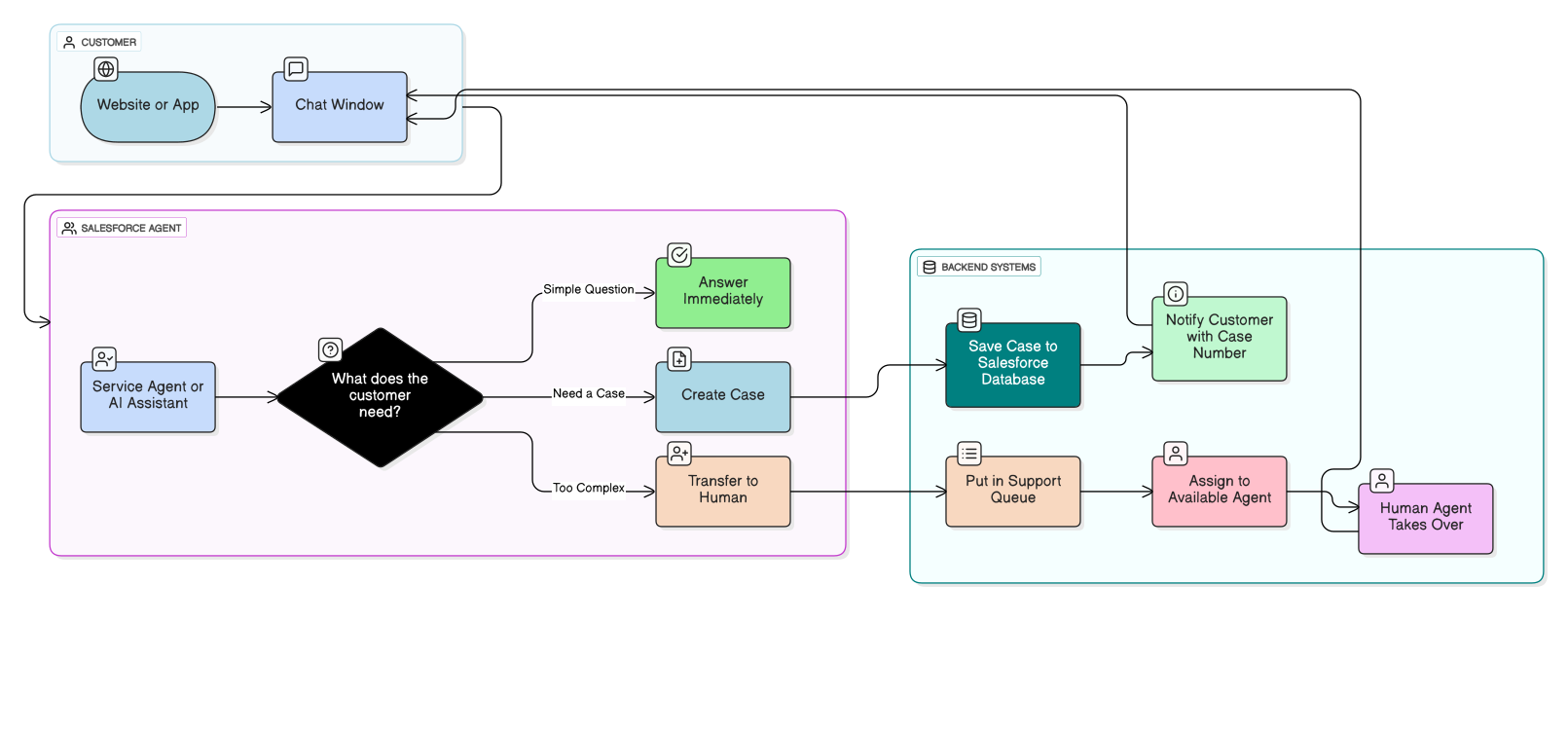
     

    Image 1 of How to Build an AI Service Agent in Salesforce Blog

Figure 1: High-level architecture showing how components interact

Prerequisites: Setting Up Your Salesforce Foundation

Before building, ensure your Salesforce org has these five critical components enabled:
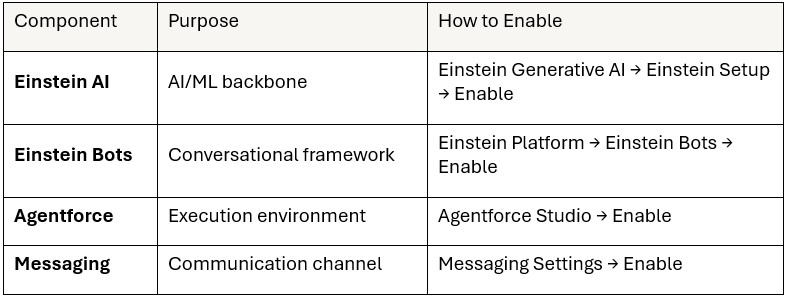
 

Image 2 Table for How to Build an AI Service Agent in Salesforce
Image 3 of How to Build an AI Service Agent in Salesforce Blog

Important Requirements:

  • Salesforce Edition: Service Cloud with Einstein Bots add-on
  • User Permissions: System Administrator or equivalent
  • Practice Environment: Use a Trailhead Playground or Sandbox first
     
Step-by-Step Implementation Guide

Step 1: Create the Backend Logic (Autolaunched Flow)

Your Service Agent needs structured workflow logic. An Autolaunched Flow serves as this backend engine.

Implementation Path:

 

Image 4 of How to Build an AI Service Agent in Salesforce Blog

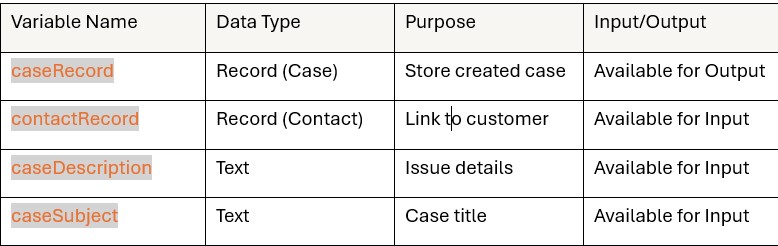
Required Variables:

Image 5 Table for How to Build an AI Service Agent in Salesforce

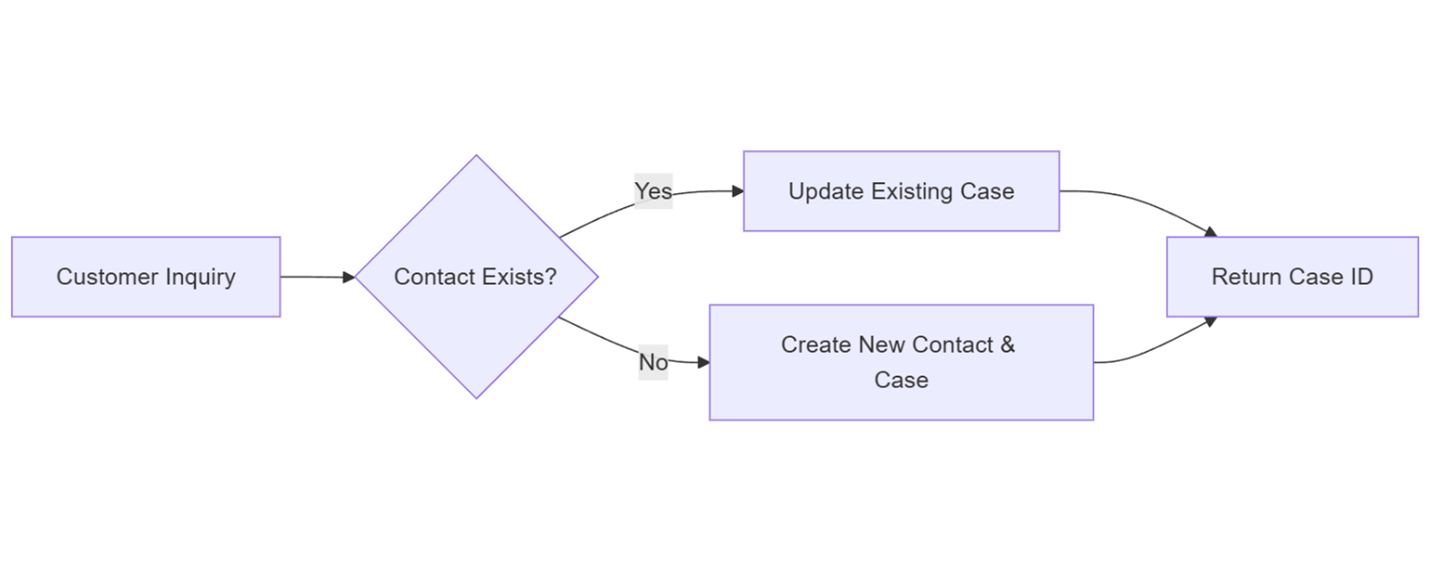
Flow Logic Pattern:

Image 6 of How to Build an AI Service Agent in Salesforce Blog

Key Design Principle: Never block case creation. If a customer doesn't exist, create the case anyway and associate contact details later.
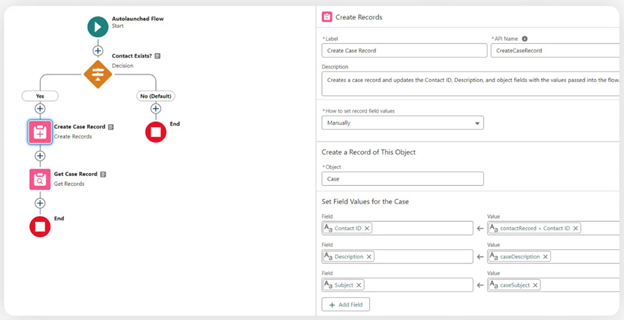
 

Image 7 of How to Build an AI Service Agent in Salesforce Blog
Image 8 of How to Build an AI Service Agent in Salesforce Blog

Step 2: Build Your Service Agent

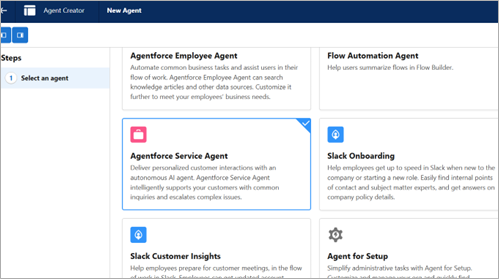
Now create the intelligent interface your customers will interact with.

Implementation Path:

 

Image 9 of How to Build an AI Service Agent in Salesforce Blog
Image 10 of How to Build an AI Service Agent in Salesforce Blog

Critical Configuration:

  1. Agent Type: Select "Agentforce Service Agent"
  2. Topics: Add these minimum topics:
    • Case Creation: For handling new support requests
    • Escalation: For transferring to human agents
  3. System Instructions: Define behavior guidelines:

    Image 11 of How to Build an AI Service Agent in Salesforce Blog

Step 3: Create an Agent Topic

Agent Actions are connectors between your Agent and backend logic.

Implementation Path:

 

Image 12 of How to Build an AI Service Agent in Salesforce Blog

Configuration: 

Image 12a image for How to Build an AI Service Agent in Salesforce
Image 13 of How to Build an AI Service Agent in Salesforce Blog
  1. Add actions: Create Case
  2. Input & Output Mapping

    Image 14 of How to Build an AI Service Agent in Salesforce Blog

Step 4: Configure Security Permissions

Your Agent cannot function without proper permission.

Implementation Path:
 

Image 15 of How to Build an AI Service Agent in Salesforce Blog

Required Object Permissions:
 

Image 15 Table for How to Build an AI Service Agent in Salesforce

Assignment:

  1. Create permission set named "Einstein Service Agent Permissions"
  2. Assign object permissions as shown above
  3. Assigned to the Agentforce Service Agent User 

Security Principle: Least privilege only grants what's necessary.
 

Image 16 of How to Build an AI Service Agent in Salesforce Blog

Step 5: Enable Omni-Channel

Enable Omni-Channel to let service reps manage their work in different service channels from the same app.

 

Image 17 of How to Build an AI Service Agent in Salesforce Blog
Image 18 of How to Build an AI Service Agent in Salesforce Blog

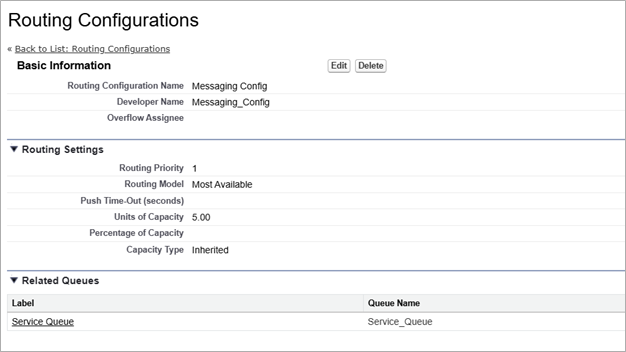
Step 6: Create Routing Configurations

Routing configurations determine how work items are routed to service reps. Use them to prioritize the relative importance and size of work items from your queues. That way, the most important work items are handled accordingly, and work is evenly distributed to your service reps. To start routing work items to service reps, create routing configurations and assign them to queues.
 

Image 19 of How to Build an AI Service Agent in Salesforce Blog

Step 7: Create Messaging Queue for Routing

Queues organize work items for your support team.

Implementation Path:
 

Image 20 of How to Build an AI Service Agent in Salesforce Blog

Configuration:

  • Name: "Service Queue"
  • Supported Objects: Messaging Session
  • Add appropriate team members
     
Image 21 of How to Build an AI Service Agent in Salesforce Blog

Step 8: Build Omni-Channel Routing Flow

Control how cases flow through your organization with intelligent routing logic.

Implementation Path:
 

Image 22 of How to Build an AI Service Agent in Salesforce Blog

Key Components:

  1. Input Variable: recordId (Text, Available for Input)
  2. Decision Elements: Route based on:
    • Case priority
    • Product category
    • Customer tier
  3. Route Work Action: Push to appropriate queue

Routing Logic Diagram:
 

Image 23 of How to Build an AI Service Agent in Salesforce Blog

Step 9: Enable Digital Experience

Enabling digital experiences is the first step to creating an Experience Cloud site, whether you’re building a community, portal, help center, or website. You also need to enable digital experiences when setting up Commerce Cloud, Financial Services Cloud, Health Cloud, and Work.com.

  • From Setup, enter in the Quick Find box, then select Digital Experiences | Settings.
  • Select Enable Digital Experiences. Your digital experiences domain is shown. It includes your My Domain name in the format MyDomainName.my.site.com for production orgs.
  • Click Save.


Step 10: Set Up Messaging Channel
Define how customers connect to your Agent.

Implementation Path: 
 

Image 24 of How to Build an AI Service Agent in Salesforce Blog

Configuration Steps:

  1. Enable Messaging
  2. New Channel
  3. Channel Type: Enhanced Chat
  4. Deployment: In-App and Web
     

    Image 25 of How to Build an AI Service Agent in Salesforce Blog
  5. Channel Routing:
    1. Routing Type
    2. Flow Definition
    3. Fallback Queue
       

      Image 26 of How to Build an AI Service Agent in Salesforce Blog
    4. Save it

Step 11: Deploy Chat on Your Website

Make the Agent accessible to customers.

For Salesforce Sites:
 

Image 27 of How to Build an AI Service Agent in Salesforce Blog
  • Go to Builder
  • Open Components
  • Add Embedded Messaging in Site
     

    Image 28 of How to Build an AI Service Agent in Salesforce Blog
  • Publish it
     

    Image 29 of How to Build an AI Service Agent in Salesforce Blog


For External Websites:

  • Copy deployment snippet from Embedded Service settings
  • Add to website HTML before closing </body> tag
  • Position widget (typically bottom-right corner)


Customization Options:

  • Floating button or embedded panel
  • Operating hours
  • Proactive chat triggers
  • Mobile responsiveness
     

Step 12: Test the Complete Workflow

Validate end-to-end functionality before going live.

Test Scenario:

Customer: "My order hasn't arrived."

Agent: "I can help with that. First, may I have your email address?"

Customer: "customer@example.com"

Agent: "Thanks. Could you describe the issue and provide your order number?"

Customer: "Order #12345, expected delivery was yesterday."

Agent: "I've created case CS-67890. Our team will investigate and contact you within 24 hours."

Verification Checklist:

Case created in Salesforce with correct data

Case appears in "Service Agent Cases" queue

Customer receives case number in chat

Contact record linked or created

Routing flow assigns case appropriately
 

Image 30 of How to Build an AI Service Agent in Salesforce Blog

Conclusion: Your AI-Powered Support Future

You've now built a complete Service Agent that automates tier-1 support while maintaining Salesforce's robust case management capabilities. This implementation provides immediate value by:

  1. Reducing Response Times: Instant 24/7 responses to common inquiries
  2. Improving Data Quality: Consistent case creation with all required fields
  3. Increasing Agent Productivity: Freeing human agents for complex issues
  4. Scaling Effortlessly: Handling unlimited concurrent conversations
  5. Multilingual Support: Detect language, respond in customer's preferred language

Remember: The most successful Service Agents evolve. Start with the basics implemented here, then gradually add capabilities based on actual customer interactions and support team feedback. Monitor performance through Agent Analytics and continuously refining topics and flows for optimal results.

Your Service Agent isn't just a tool it's a scalable extension of your support team that learns and improves over time, delivering increasingly sophisticated customer experiences while driving operational efficiency.