



Sitecore has been a top choice for enterprise digital experiences for a while. Sitecore lets you manage content in multiple languages under one item tree, with workflow and publishing support for each language. For global brands, this is a big deal; it is the backbone of their digital operation.
The problem comes when you need to translate content. You need a translation service for that, and the only way to bring one into Sitecore is through a Marketplace app. There is no built-in option, and a Marketplace app is the only way to do it.
The Translation Bottleneck Nobody Talks About
Translating content has always been painful. Even with modern AI translation platforms doing the heavy lifting on quality, the process around it has not changed much. A marketer or content editor identifies the fields that need translation, copies them out, submits them somewhere, waits, gets a result back, and pastes it into the target language version in Sitecore. Repeat for every page, every component, every language variant.
Typically, you either adopt a full third-party connector that locks you into one translation vendor and a specific workflow, or you build something custom and spend months maintaining it. That is the bottleneck XCentium set out to remove.
Introducing the Universal Content Translation App for Sitecore AI
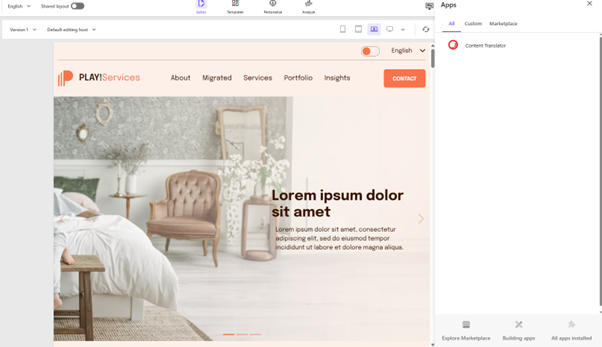
The XCentium Content Translate app is built for Sitecore AI and available directly from the Sitecore Marketplace, a sidebar panel that lives inside Sitecore Pages. No separate tool, no export/import cycle, no context switching. Editors open the panel on any page and walk through a four-step wizard that takes them from selecting a translation service to seeing the translated content written back to Sitecore, all without leaving the authoring environment.
What makes it different from a traditional connector is the core design philosophy: service-agnostic, administrator-configurable, zero vendor lock-in. Think of it as a universal adapter for translation APIs. Today it ships with Azure AI Translator and DeepL, and more providers are already on the roadmap. Adding a new provider is a matter of implementing a known interface rather than rebuilding the app. It is worth noting that each translation service may have its own nuances such as workflows and token limits as well.
How It Works
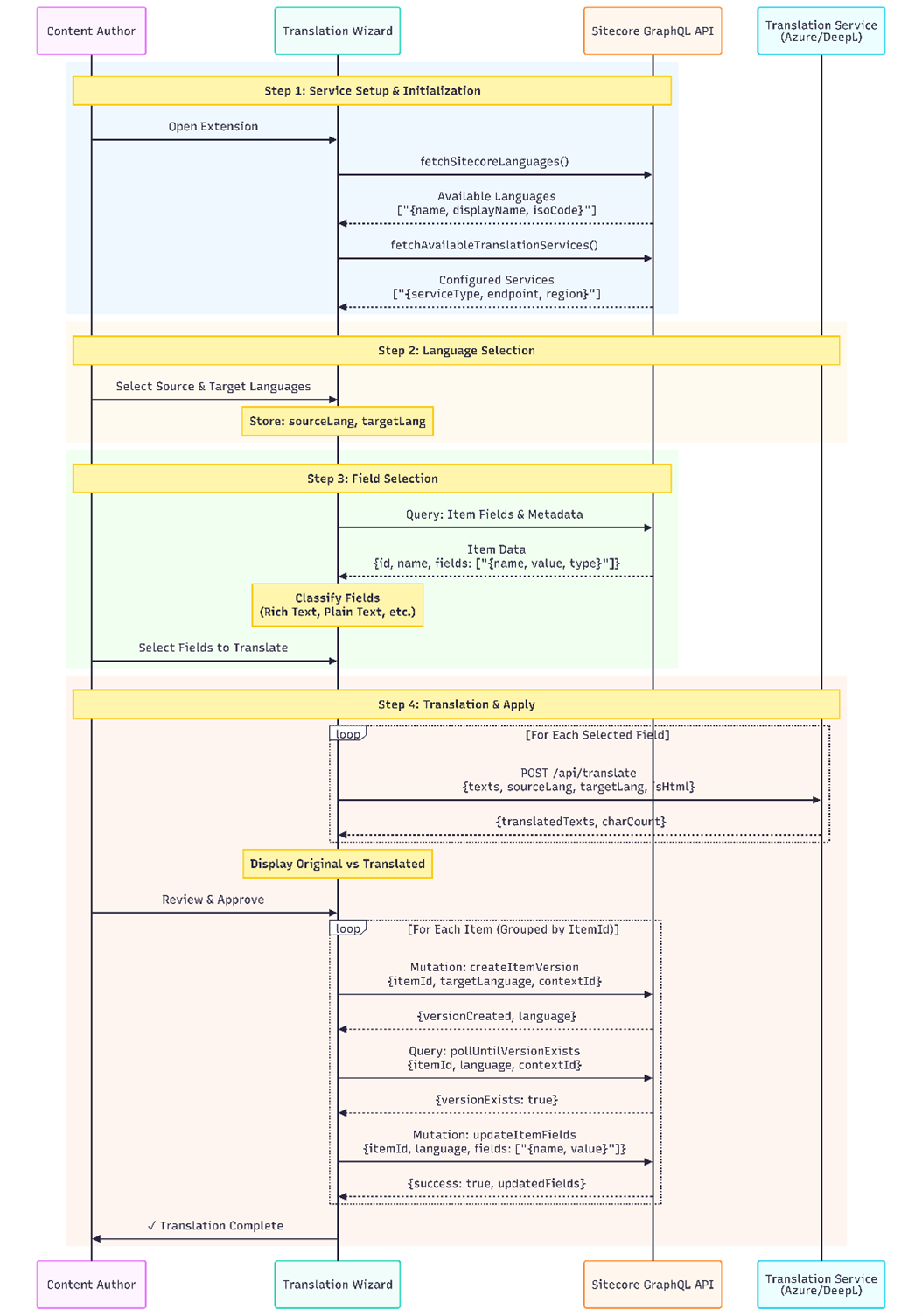
From the marketer's perspective, the entire translation workflow lives inside a single sidebar panel in Sitecore AI Pages. Here is the end-to-end flow:
What Makes This Different from a Standard Connector
- Zero vendor lock-in. The app treats translation providers as interchangeable. Azure AI Translator and DeepL ship today; adding a new provider requires writing a single adapter class. The wizard, field selection, and write-back logic stay completely unchanged.
- Sitecore-managed configuration. Service credentials are stored as structured items under /sitecore/system/Settings/Content Translator/. Administrators configure once, and editors simply select from the list. No editor ever touches an API key.
- Smart field classification. The panel automatically filters out system fields, GUIDs, date strings, image XML, and file references. Only the fields containing translatable human content appear in the list.
- API keys stay server-side. Credentials are never sent to the browser. All translation requests route through a server-side proxy, making it safe for enterprise deployments with strict credential management policies.
The Editor Experience: A Four-Step Wizard
Step 1: Select Your Translation Service
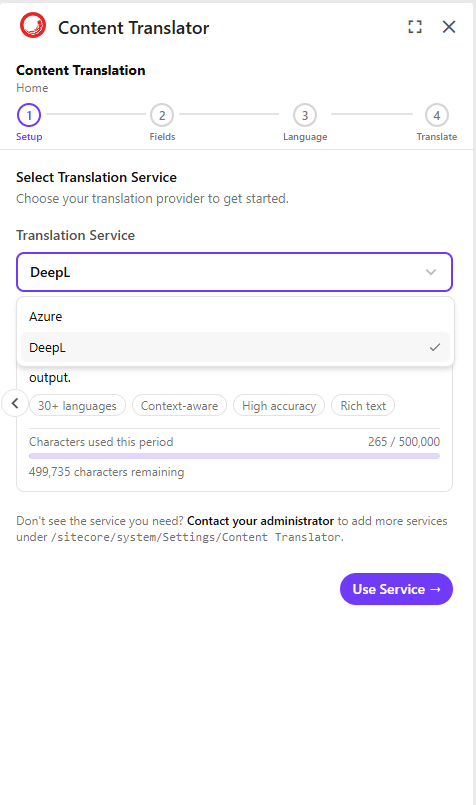
When an editor opens the panel on a page, the first thing they see is the service selection screen. The app queries the Sitecore settings tree and lists every configured translation service. Each service card shows a description and capability tags so editors understand what each option provides.
For DeepL, the app proactively loads the API configuration and immediately shows the account’s character usage bar. Editors can quickly see how much of their monthly quota remains before committing to a translation job.
If a service is not configured in Sitecore, the panel falls back gracefully to a manual credential entry form. The API key is never stored in the browser or sent to Sitecore. It lives only in the session and is passed to the server-side proxy for each request.
Step 2: Choose Which Fields to Translate
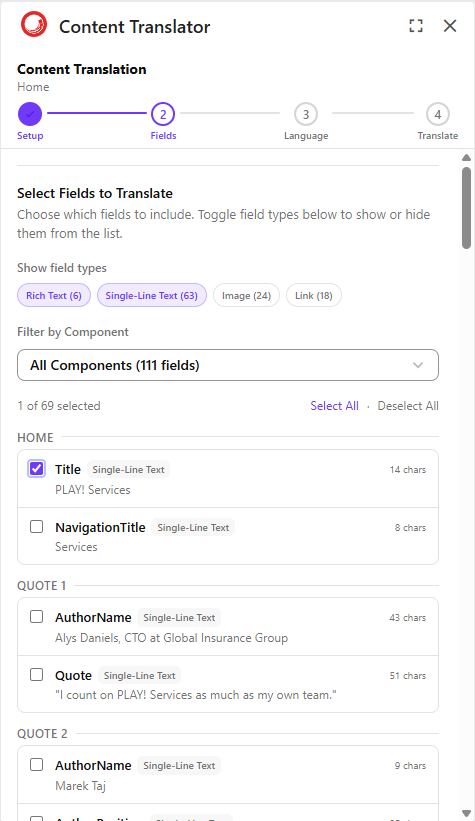
After selecting a service, the panel fetches all translatable fields for the current page. The field classification engine parses the page’s presentation definition to find both the page item’s own fields and the datasource items backing each component on the page.
Editors can filter by field type using toggles such as Single Line, Multi-Line, and Rich Text. Fields are grouped by component, making it easy to translate sections independently.
Step 3: Pick Your Target Language
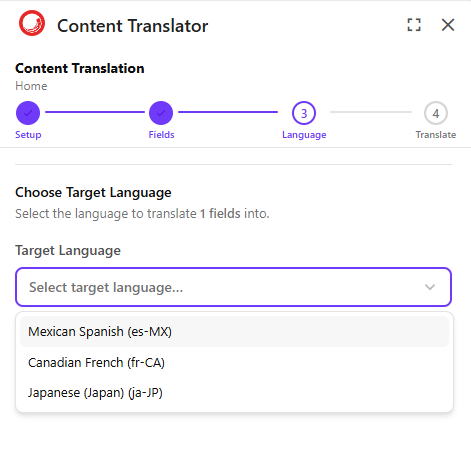
Step 3 pulls the list of configured Sitecore languages directly from the Sitecore instance rather than from a hard-coded list inside the app. If your Sitecore environment includes fr-CA, de-DE, and ja-JP, those are the exact options editors see.
The source language is fixed to English (en) in this version, reflecting the common enterprise pattern where English is the primary content source.
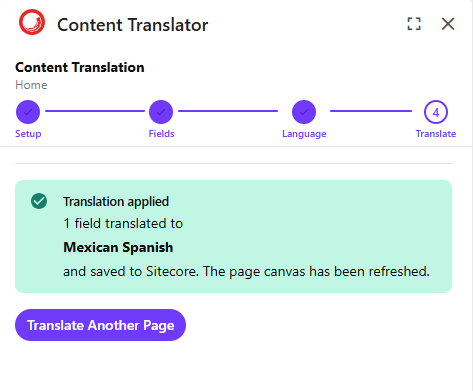
Step 4: Translate, Review, and Apply
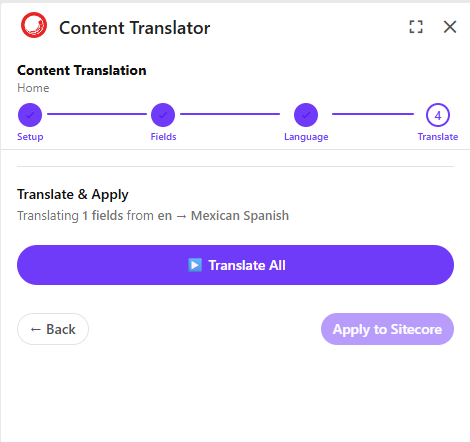
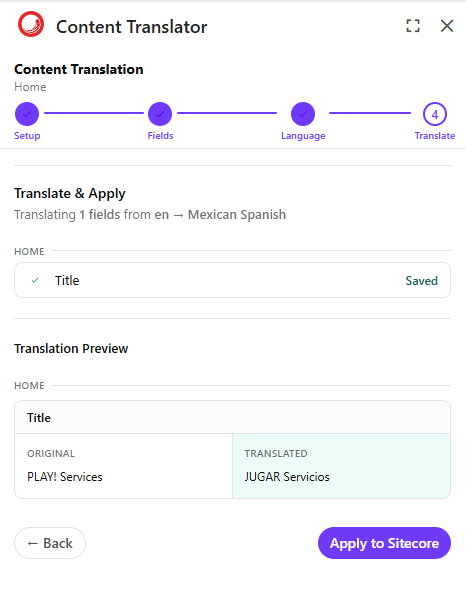
Clicking Translate All fires parallel requests to the translation API through the server-side proxy. Each field translation is tracked with real-time status indicators.
Once translation completes, editors see a side-by-side diff preview. For rich text fields, they can toggle between raw HTML and rendered preview to confirm formatting is preserved.
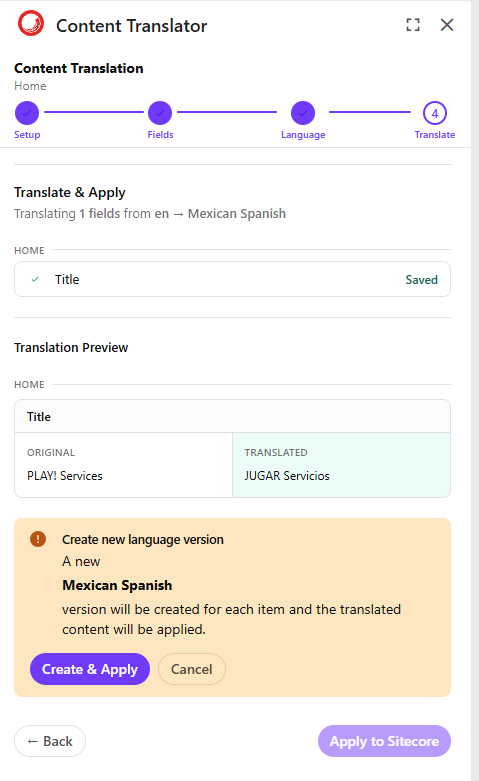
Clicking Apply to Sitecore creates language versions for the datasource items if needed and writes translated field values back to Sitecore in a batch operation.
What This Looks Like in Practice
Here is an example end-to-end workflow for a marketing team running a global campaign:
- Content manager opens a campaign landing page in Sitecore Pages.
- Opens the Content Translate panel from the sidebar.
- Selects Azure AI Translator configured by the Sitecore administrator.
- Reviews the automatically detected fields and deselects those managed by a separate localization team.
- Selects French (Canada) as the target language.
- Clicks Translate All.
- Reviews the diff preview to confirm formatting and translation quality.
- Clicks Apply to Sitecore to create the language version automatically.
- Publishes the translated page using the normal Sitecore workflow.
What once required 15 to 20 minutes of copying, pasting, version creation, and manual entry now takes under five minutes with significantly reduced risk of human error.
The Bigger Picture
What XCentium has built here is more than a translation tool. It represents a reusable architectural pattern. The same service-agnostic wizard, administrator-managed configuration in Sitecore, server-side API proxying, and tight SDK integration can power many types of content enrichment workflows that rely on external services.
The plug-and-play philosophy behind the product is practical and scalable. Register a new translation API, add the adapter, update the Sitecore settings tree, and editors immediately see the new service in their dropdown without redeploying the application.
For Sitecore customers who have been waiting for a vendor-neutral translation experience directly inside Pages, this solution delivers exactly that.