



Decoupled deployments have recently been made generally available , making now a great time to consider converting your project. I recently went through this process and wanted to share some insights and a few gotchas I encountered along the way.
What Are Decoupled Deployments?
Before discussing how to convert, it helps to understand why this architecture matters. Previously, Sitecore AI editing hosts were part of the same monolithic repository.
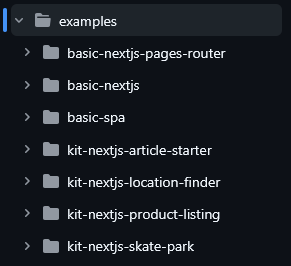
This meant the code for each head application lived in the same repository. As a result, deploying changes to one head required deploying the entire CMS solution along with every other head application. This approach slowed development and violated separation-of-concerns best practices.
Decoupled deployments solve this problem by separating the CMS repository from each head application. Each application gets its own repository and build pipeline, allowing teams to deploy independently and significantly reduce build times.
How to Convert Your Existing Project
Sitecore provides a simple conversion pathway , including a one-click option. However, there are a few considerations worth addressing before starting the process.
Step 1: Preparation
Before clicking the convert button in the Sitecore AI Deploy dashboard, review the code across all branches and environments. The conversion process builds and deploys every environment in the project—including production.
Gotcha #1: Separate Your Code Before Converting
Technically, you can separate repositories after conversion, but doing so beforehand is much cleaner. If you convert without separating the code, Sitecore will create separate deployments while the code still resides in the same repository. You will then need additional changes and deployments to properly split the repositories.
- Create a new repository containing only the head application code.
- Remove the head application code from the CMS repository.
- Run the conversion and deploy.
Gotcha #2: Configure xmcloud.build.json
The file configures rendering hosts for your project. When head applications lived inside the CMS solution, the configuration looked something like this: xmcloud.build.json
"basic-nextjs": {
  "path": "./examples/basic-nextjs",
  "nodeVersion": "22.22.0",
  "jssDeploymentSecret": "110F1C44A496B45478640DD36F80C18C9",
  "enabled": true,
  "type": "sxa",
  "buildCommand": "build",
  "runCommand": "next:start"
}
After separating repositories, the CMS still needs a configuration entry so Sitecore knows the site name.
CMS repository configuration:
"basic-nextjs": {
  "path": "."
}
Head application repository configuration:
"basic-nextjs": {
  "path": ".",
  "nodeVersion": "22.11.0",
  "enabled": true,
  "type": "sxa",
  "buildCommand": "build",
  "runCommand": "next:start"
}
This site definition must exist in both repositories, and the names must match exactly.
Step 2: Conversion
Once preparation is complete, you can trigger the conversion from the Sitecore dashboard.
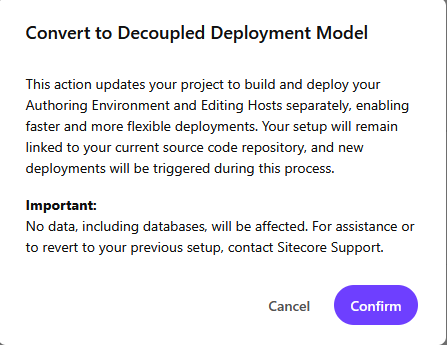
Although the conversion does not affect your data, it will build and deploy all environments.
Gotcha #3: Serialization Sync Runs During Conversion
The conversion process triggers a build and deployment that includes serialization sync. Any serialization configurations in your solution will run during this step. Make sure everything is up to date so no serialized items overwrite content unintentionally.
Depending on the number of environments, this process may take some time. If a build fails, the system will automatically retry. If your rendering hosts are configured correctly in the build file, Sitecore will also create deployments for them automatically.
Step 3: Validation
After the build and deployments complete successfully, your project dashboard should display two tabs instead of one.
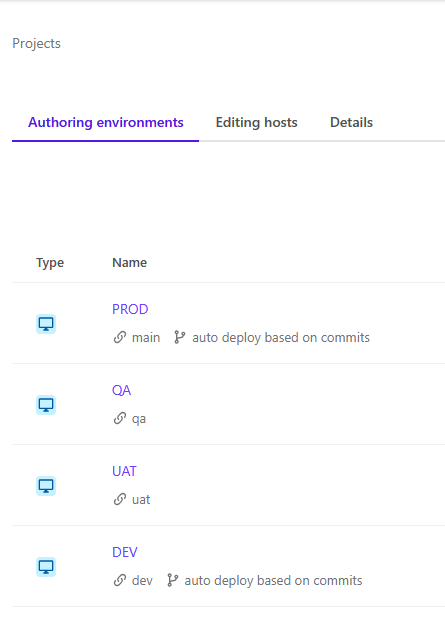
Authoring environments are now separated from rendering hosts. The authoring environment points to the CMS repository:
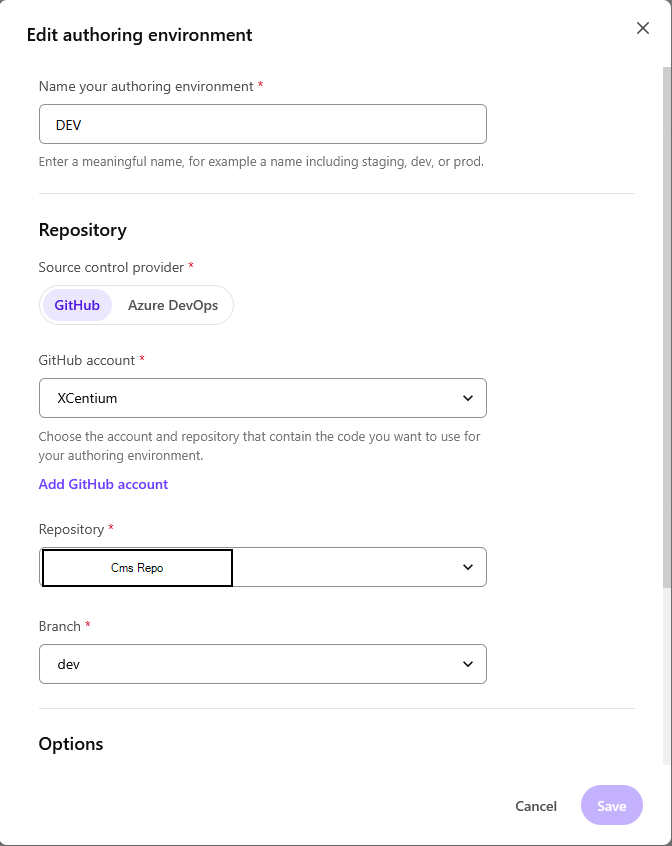
Meanwhile, the editing host has its own configuration and deployment pipeline:
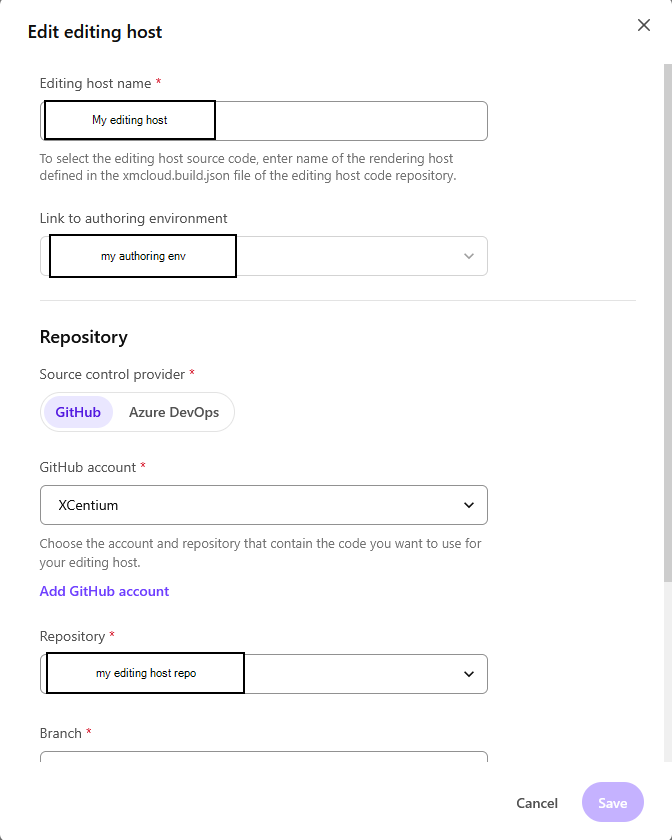
Once configured correctly, you can deploy changes to the editing host independently. These deployments are significantly faster because they do not require a full CMS build.

- Only the updated editing host is deployed
- Other hosts are unaffected
- CMS deployment does not run
- No content serialization sync occurs
With these changes in place, teams can deploy faster and maintain cleaner separation between CMS and frontend applications. Hopefully these insights make your conversion process smoother.