



Design-to-build workflows are changing fast. With the right setup, you can go from a Figma design to a working Sitecore component using a large language model (LLM) as a coding partner. This can significantly reduce manual effort while keeping you in control of the architecture.
In this post, I'll walk through how I went from Figma to Sitecore using Model Context Protocol (MCP) servers and an LLM. I'll also cover what worked, what didn't, and the prompts I'd reuse.
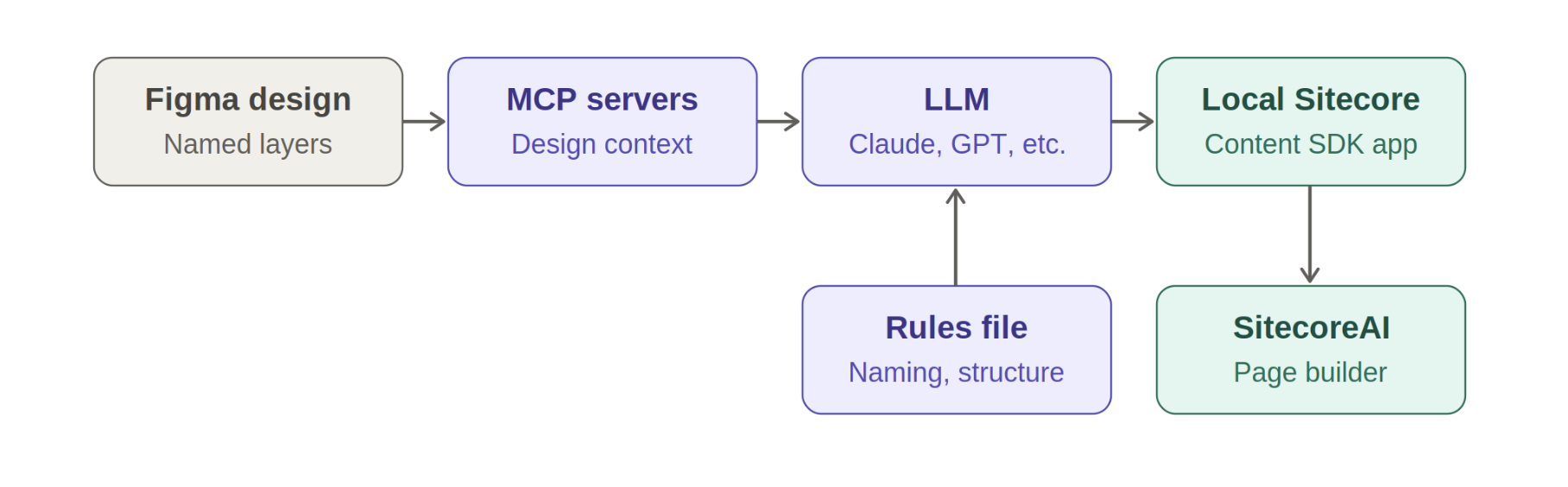
TL;DR: Clean up your Figma file, connect your LLM to Figma and Sitecore through MCP, give it clear project rules, and build one component at a time: markup first, Sitecore integration second.
What you'll need: Figma access with Dev Mode, a SitecoreAI instance, Node.js, the Sitecore Content SDK starter running locally, and an MCP-capable LLM client such as Windsurf, Visual Studio Code, Claude, Cursor, ChatGPT, or Copilot.
Setup
1. Configure the MCP servers
The LLM needs two connections: one to read your design and one to work with Sitecore.
The Figma MCP server gives the LLM access to your design's layers, layout, and styles. From Windsurf, the Sitecore MCP server connects it to your SitecoreAI instance, formerly Sitecore XM Cloud.
Once both servers are connected, test them before you build anything. A quick check is to ask the model to list the frames in your Figma file and the templates in your Sitecore instance. If either list comes back empty or incorrect, fix the connection first. An unreliable connection can lead to confusing results later.
2. Run Sitecore locally
You'll need Sitecore source code running locally and connected to your SitecoreAI instance. I used the official React starter from the Sitecore Content SDK documentation. I chose it for three reasons: it includes built-in guidance for LLM workflows, its project architecture is clean, and it works with SitecoreAI Design Studio.
3. Set clear rules for the LLM
Before writing a single prompt, I created a rules file that tells the LLM how the project works. It covers file architecture, naming conventions, component folder structure, TypeScript standards, and keeping presentation separate from content logic.
Here's an excerpt:
- Components live in src/components/<ComponentName>/
- Use PascalCase for component names and files.
- All components must be typed with TypeScript; do not use any.
- Keep presentation (JSX/styles) separate from Sitecore field logic.
- Reuse existing components before creating new ones.
The Content SDK starter also ships with its own LLM guidance in the project README file. Read it before writing your own rules so the two don't conflict.
One more planning note: don't ask the LLM to do too much in a single prompt. LLMs are powerful, but they do their best work in small, well-defined steps.
Workflow
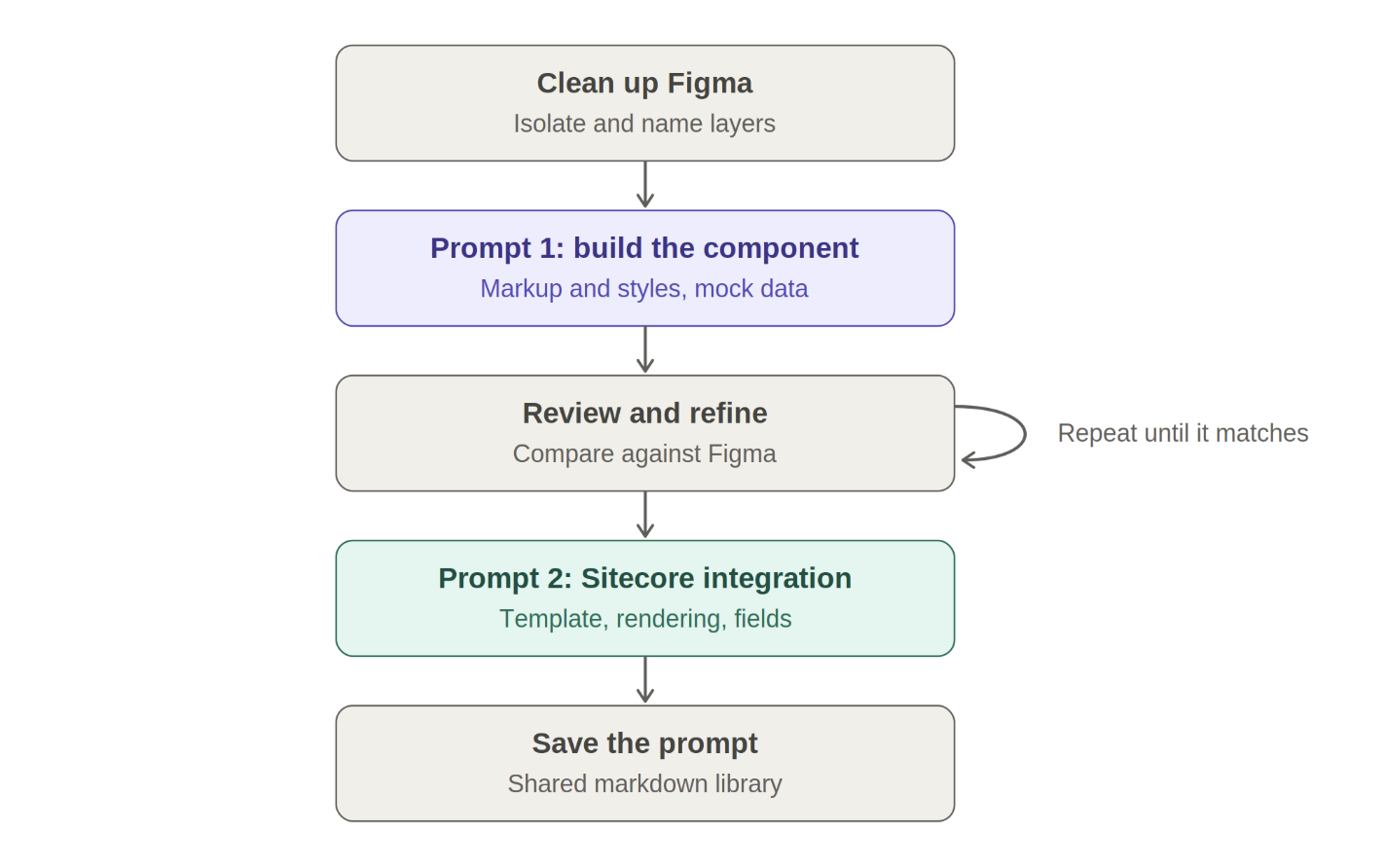
Step 1: Clean up Figma
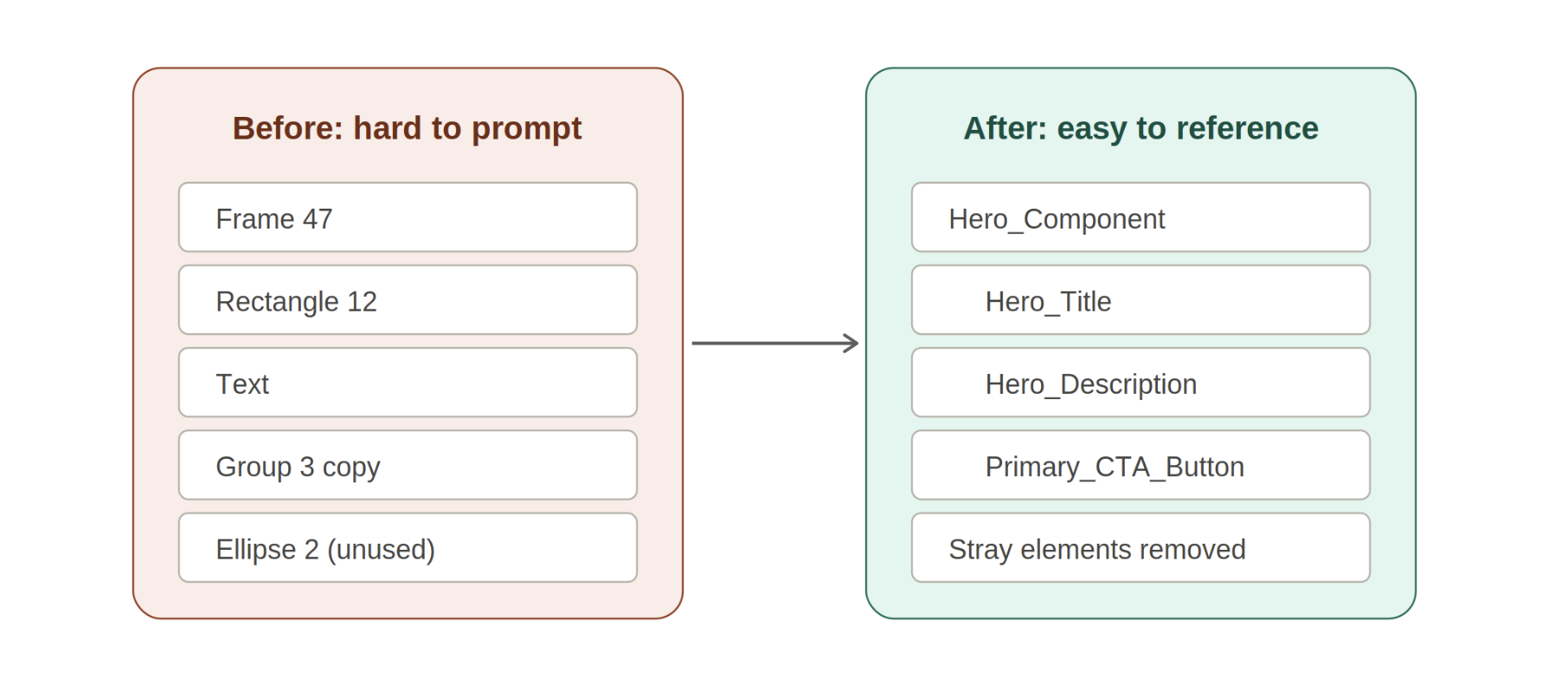
Designers often keep several designs on one canvas, along with stray elements they used while working. The LLM can't tell which parts matter, so isolate and label everything you want it to capture.
A few practices make a big difference:
- Put each UI element on its own layer.
- Use clear, semantic names instead of generic ones like "Rectangle 12."
- Group related elements logically, with one parent frame per component.
- Label components so you can reference them by name in prompts.
Names like Hero_Title, Hero_Description, Primary_CTA_Button, Card_Component, and Footer_Links give the LLM something precise to work with. They also make your prompts shorter.
Step 2: Build the component
Start with the component itself, using mock data. Don't connect it to Sitecore yet.
Example prompt:
"Review this [Figma link] and take a screenshot for layout reference. Create the [component name] component, reusing existing components in the solution wherever possible. Use mock data for now."
Because the Content SDK starter has a defined structure, the LLM places the new component in the right folders and follows the project's patterns.
Step 3: Review and refine
Compare the result against the Figma design before moving on. I checked spacing, typography, responsive behavior, and whether existing components were reused or duplicated. Small follow-up prompts work better than one large correction:
Example prompt:
"Match the button padding and border radius to the Primary_CTA_Button layer in Figma."
Step 4: Integrate with Sitecore
Once the component looks right, ask the LLM to connect it to Sitecore:
Example prompt:
"Create a Sitecore template and rendering for this component so it can be used in the page builder."
From there, I refined the component further by adding placeholder support, mapping fields to Sitecore templates, generating rendering definitions, and creating serialization-ready content models.
Step 5: Save the prompts that worked
Keep a Markdown file of successful prompts in the repository. The next developer can repeat the process without starting from scratch, and the file improves over time.
Here's a short demo of the full process: