



Many sites keep their best content in PDFs: case studies, whitepapers, datasheets, and brochures. Visitors search for a phrase from one of those documents and find nothing because search only knows about the content that has been sent to it. The text inside a PDF is not sent by default.
This guide explains how to fix that without code. It covers the approach, the components involved, how to configure a push source and its fields in SitecoreAI, and what to watch out for.
Which product is this? This guide covers Search experiences in SitecoreAI, not the older standalone Sitecore Search product (the Customer Engagement Console). Their setup and APIs differ, so make sure the documentation you follow refers to "Search experiences" and "SitecoreAI".
The Idea in One Minute
A search experience searches a source that you control. A source is a collection of documents, and each document contains fields such as a title, description, and body of text.
To make PDFs searchable, you:
- Create a push source, an empty source that holds only what you send to it.
- Define the fields each PDF will have, including its title, body text, and link.
- Run a small sync tool that reads your PDFs, extracts the text from each one, and sends it to the push source.
- Point your search experience at that source.
The sync tool is the only custom component. Everything else is configured in SitecoreAI.
Architecture
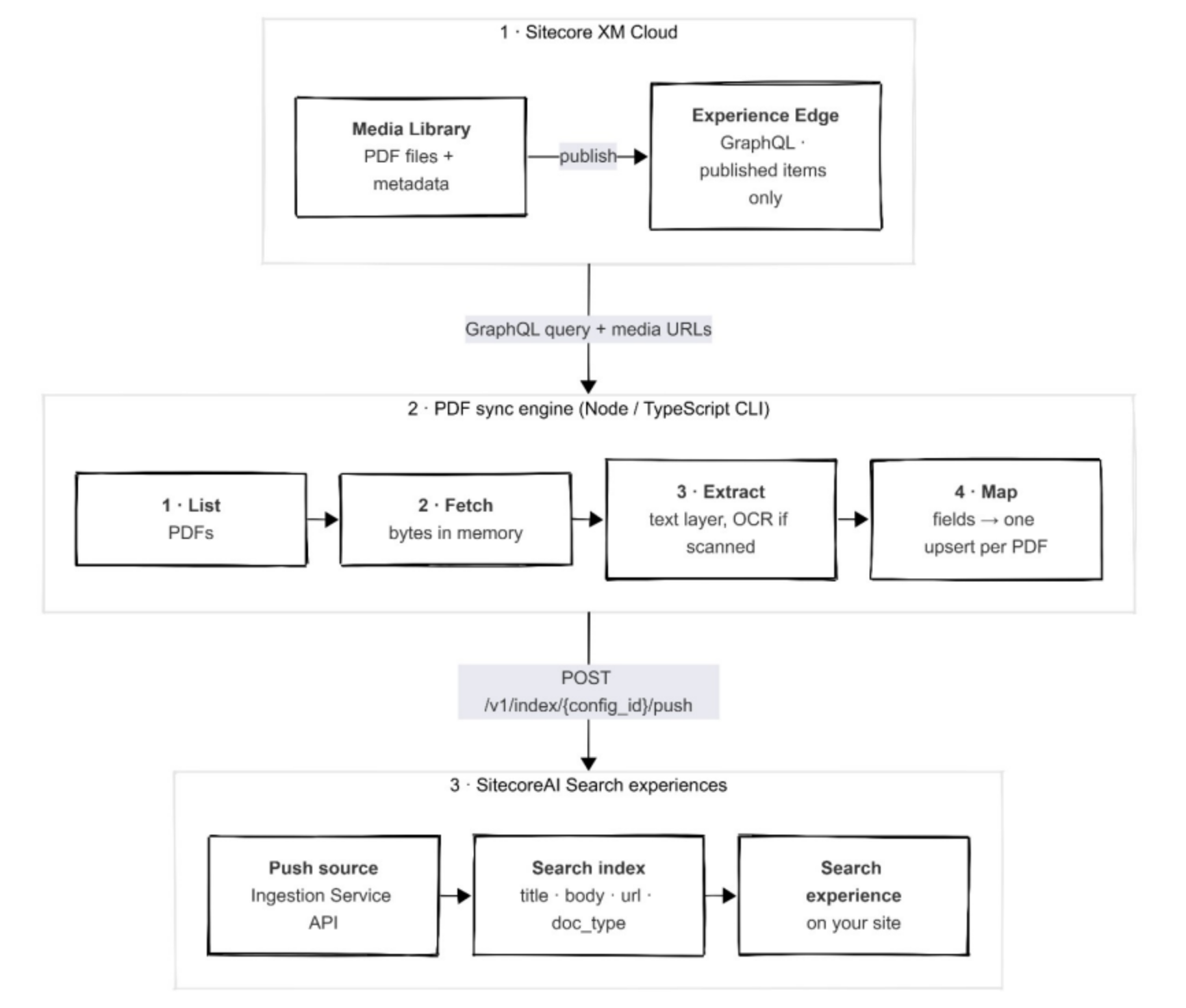
Reading the architecture from left to right:
- Media Library: Holds the PDFs. When they are published, Experience Edge can list them and provide their public links.
- Sync tool: Runs outside Sitecore. It lists the PDFs, downloads each one, extracts the text (using OCR if the PDF is a scan), and builds one document per PDF.
- Push source: Receives those documents through Sitecore's Ingestion Service API.
- Search experience: Searches the source and displays the PDFs in your site's search results, with a link to each file.
Why a Push Source?
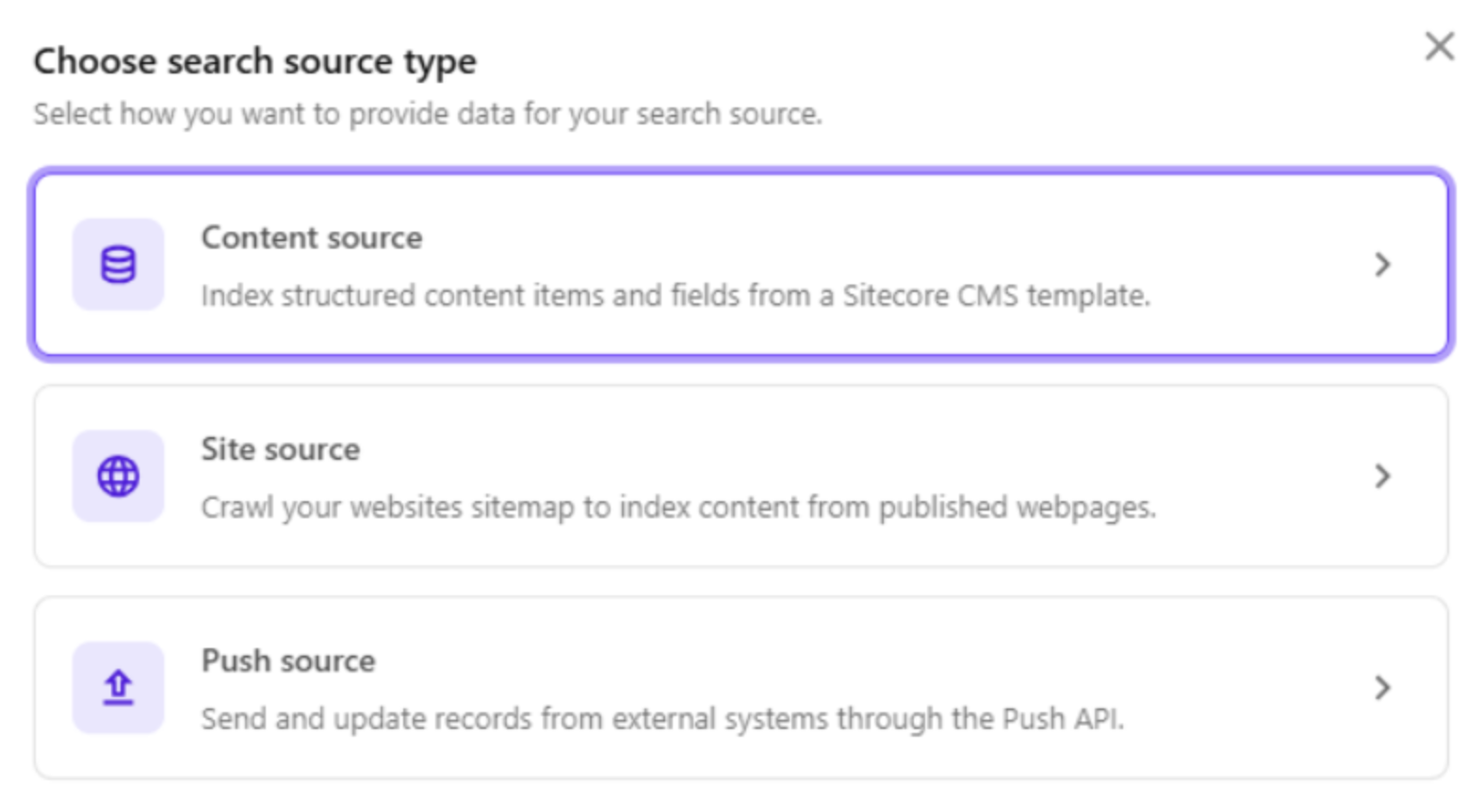
SitecoreAI offers different types of sources. A site source holds pages that Sitecore crawls, while a content source holds content that comes from Sitecore itself. A push source holds only what an external system sends to it.
A push source is well suited for PDFs for two reasons:
- Control over indexed content: You choose the title, text, and link for each PDF.
- Protection from re-indexing: Sitecore warns that when a site or content source is re-indexed, anything pushed to it through the API can be lost. A push source treats your synchronization process as the source of truth, avoiding that risk.
Before You Start
You will need:
- Published PDFs in the Media Library: Only published items are visible to Experience Edge, so unpublished PDFs are skipped automatically.
- Access to Search experiences: Sitecore describes the feature as rolling out in phases, so it may not be visible in every organization yet.
- Permission to create an API key: In production, only Organization Owners and Organization Admins can create API keys.
- Experience Edge access: An endpoint and API key so the tool can list the PDFs.
- A place to run the sync tool: Such as a developer machine, scheduled job, or build pipeline.
Step 1: Create the Push Source
Create a new source in SitecoreAI's search sources and choose the push source type. Sitecore's documentation covers this under "Manage push sources".
- Give the source a clear name, such as "PDF Documents".
- Choose the locale or locales your documents use, for example, English.
- Save the source. You will add its fields next.
Step 2: Add the Fields (Attributes)
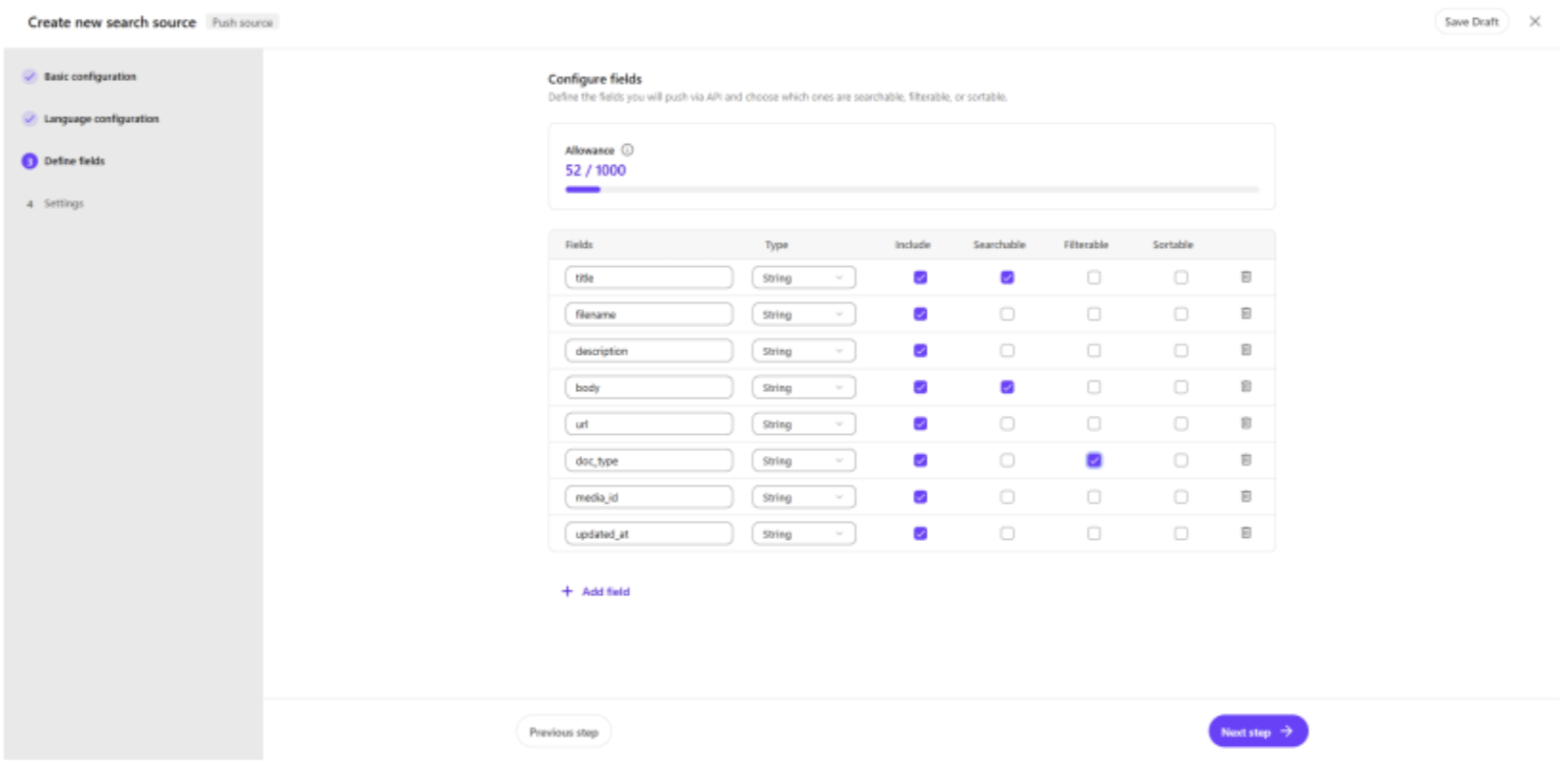
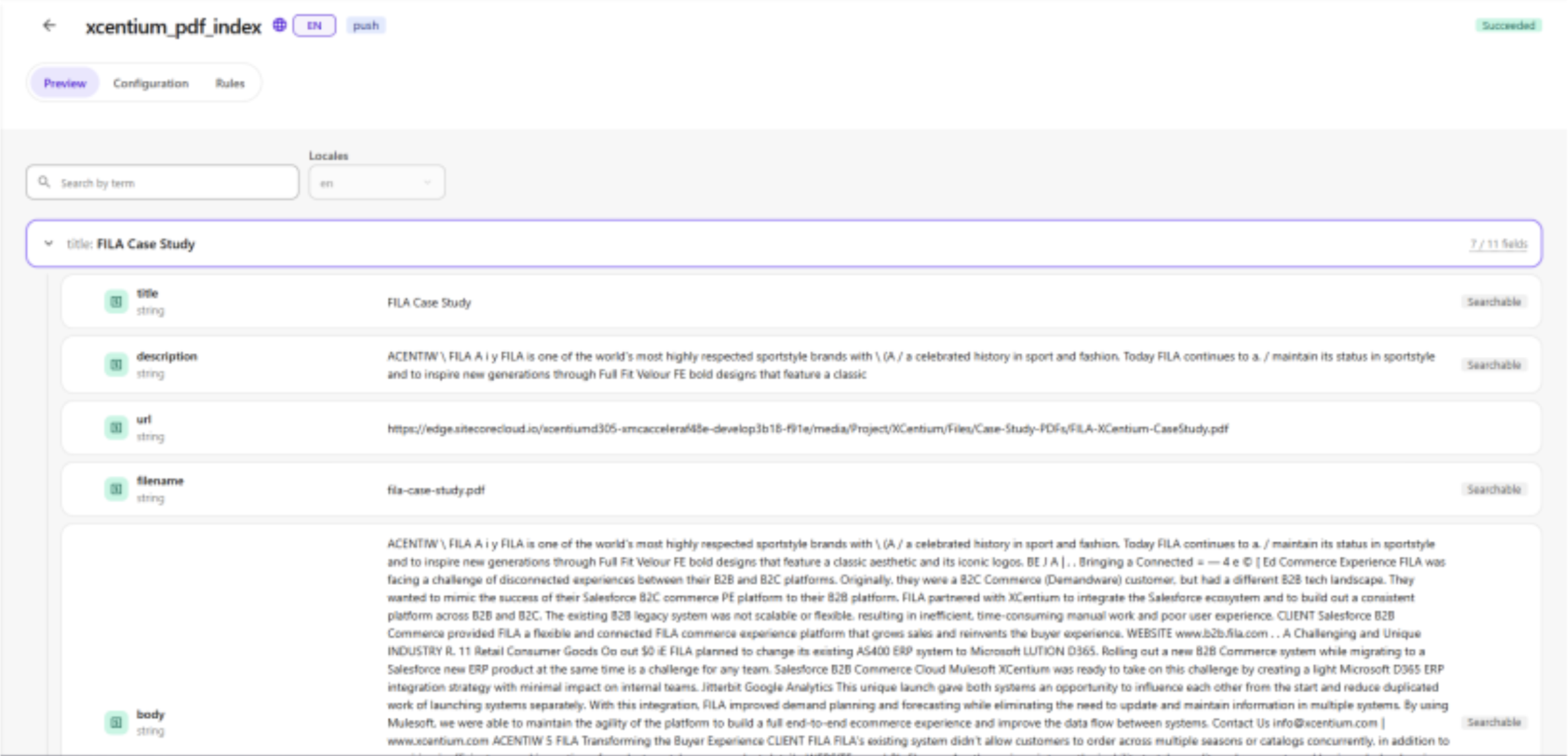
Each PDF becomes one document made up of fields. This step matters because the API does not create fields automatically. If the sync tool sends a field that does not exist in the source, the document is rejected. Field names are also case-sensitive, so "Title" and "title" are different fields.
Add one field for each piece of information you want to search, display, or filter on:
| Field | What It Holds | How to Use It |
|---|---|---|
| title | The PDF's title | Show it as the result heading and make it searchable. |
| filename | The file name, such as case-study.pdf | Optional; can be searchable. |
| description | A short summary | Show it under the title in search results. |
| body | The full text extracted from the PDF | Make it searchable. This is what finds phrases inside the document. |
| url | The public link to the PDF | Use it as the link on each result. |
| doc_type | Always "pdf" | Use it as a filter so visitors can narrow results to PDFs. |
| media_id | The Sitecore item's ID | Maintains a link back to the original item. |
| updated_at | When the PDF was last updated | Optional; use it for sorting or displaying a date. |
A few considerations when choosing fields:
- Keep the field set small: Only add fields you will use. You can always add more later.
- Be careful with the body: An API request can be at most 512 KiB, so very long PDFs should be trimmed. Searching the first part of a long document is usually sufficient.
- Use the required date format: If you include updated_at, the API only accepts dates written as YYYYMMDDTHHMMSSZ (for example, 20250115T093000Z). Standard formats like 2025-01-15T09:30:00Z are rejected.
- Avoid reserved field names: Sitecore ignores fields whose names begin with sc_, so do not use that prefix.
- Keep field names consistent: The names above are suggestions. What matters is that the sync tool uses exactly the names you create.
Step 3: Publish the Source
A source must be published before it can receive documents. If you try to push to an unpublished source, the API responds that the configuration was not found. After publishing, the source is ready, although it is still empty.
Step 4: Collect the Connection Details and Create an API Key
The sync tool needs to know where to send documents and must have permission to do so. Collect the following details:
| Detail | Where to Find It | Used For |
|---|---|---|
| API Endpoint | Shown in the source's configuration | The address where the tool sends documents |
| Config ID | The same location as the endpoint | Identifies which source receives the documents |
| API key | Created from the source's settings (Create credential) | Authorizes the tool to push documents |
| Locale | The locale chosen for the source | Must match, for example, en or en-US |
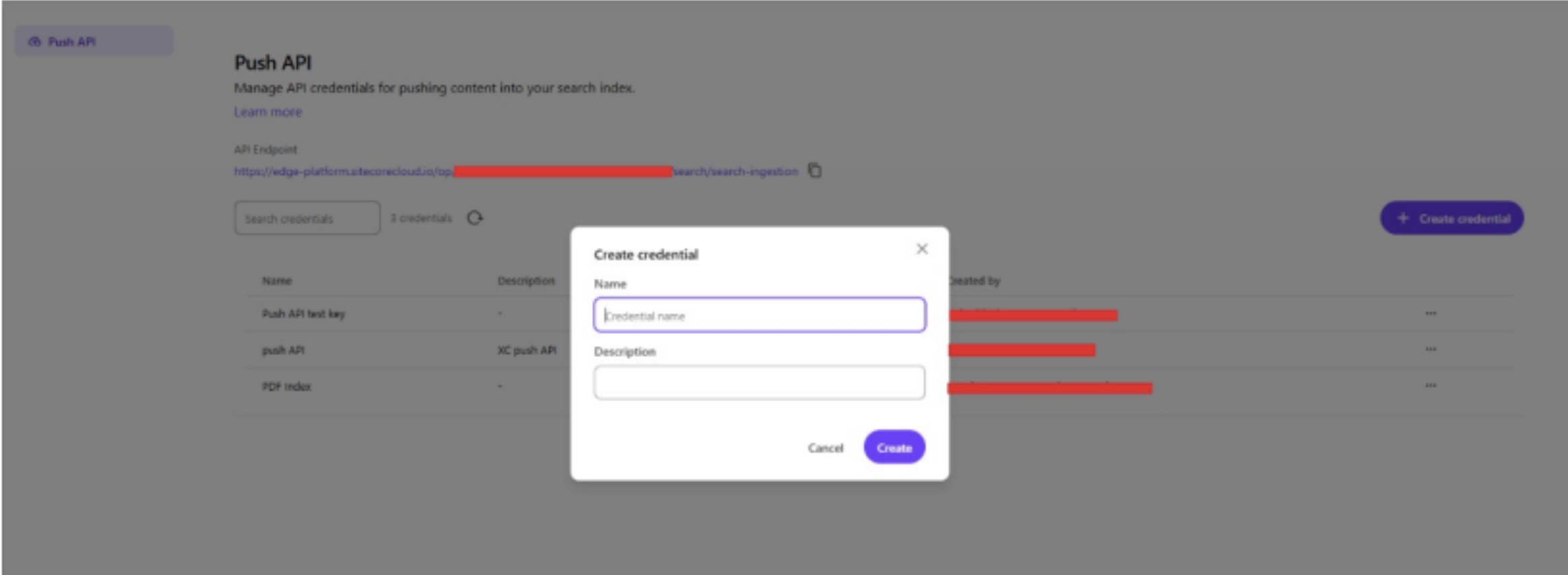
To create the key, open the source's settings, choose "Create credential", give it a name, and copy the key. The key is shown only once, so store it securely immediately, such as in a password manager or your pipeline's secret store.
Treat the API key like a password. Never put it in a repository or screenshot.
Sitecore's documentation describes the exact menu path in two slightly different ways, so confirm it in your own instance.
Step 5: Build the Sync Tool
The sync tool is the one component you create yourself. Each time it runs, it performs the following steps:
- Lists the PDFs: It asks Experience Edge for every published PDF in the Media Library, along with each item's title, description, last-updated date, and public link.
- Downloads each PDF: It fetches the file into memory. This is required for full-text search because Experience Edge provides the file's details but not its contents.
- Extracts the text: Most PDFs contain text that can be read directly. Scanned PDFs contain images of pages, so the tool uses OCR (optical character recognition) to extract the words. OCR is slower, so limiting the number of pages it processes is recommended.
- Cleans the text: It joins words split across lines, removes extra spaces, and trims content that is too long.
- Builds one document per PDF: It populates the fields from Step 2, including the title (the editor's title or the file name if empty), description (the editor's description or the beginning of the extracted text), body, link, and other fields.
- Sends the documents: It sends them to the push source's API Endpoint in small batches, using the API key. Each request can contain at most 50 documents and 512 KiB, so larger sets must be split into smaller batches.
You can write this tool in any language. It can run on a schedule, manually, or after a publish event.
What the Tool Sends
Every document is sent as an upsert. The first time a PDF's ID is sent, it is added. Sending the same ID again updates that document.
Each document needs a unique ID, and the Media Library item's ID works well. Using the same ID every time prevents duplicates.
The tool should also handle problems gracefully:
- If the server reports that some documents succeeded and others failed, only the failed documents need to be sent again.
- If the server is temporarily unavailable, wait and retry.
- If a request is rejected because of an error such as an incorrect field name or invalid API key, stop and report it. Retrying will not resolve the issue.
- One corrupt PDF should not stop the entire run. Log the error and continue.
Important: The Ingestion Service API writes directly to the live index. There is no dry run or separate publish step. Test with a small number of PDFs first, and provide a "preview only" mode that shows what the tool would send without actually sending it.
Step 6: Show the PDFs in a Search Experience
Now connect the source to what visitors see:
- Make sure the search experience uses the PDF push source.
- Set the result title and link to the title and url fields.
- Add doc_type as a filter if you want visitors to narrow results to PDFs.
- Confirm that body is configured as searchable.
Then search for a phrase that appears only inside a PDF, not in its title. If the PDF appears in the results, the setup is working.
Keeping the Index Up to Date
PDFs change, so the sync process needs to run regularly. There are three approaches, and the right choice depends on how frequently your PDFs change.
| Approach | How It Works | Good For |
|---|---|---|
| Re-send everything each time | Every run upserts every PDF. Existing documents are simply updated. | Small libraries and the simplest implementation |
| Only send what changed | The tool remembers what it sent last time and only sends new or changed PDFs. | Large libraries where sending everything is slow |
| React to publish events | A trigger runs the tool when a PDF is published or removed. | Content that must appear in search quickly |
Removed PDFs
Deletes require additional care. If you unpublish or delete a PDF in Sitecore and your tool only performs upserts, the old document remains in the index and can still appear in search results.
To remove it, the tool must send a delete request for that document's ID. To know what to delete, it needs to remember what it sent previously or react to an unpublish event.
Plan for this from the beginning because it is an easy step to overlook.
Common Problems
| Symptom | Likely Cause |
|---|---|
| The API says "not found" | The source is not published, or the Config ID is incorrect. |
| A request is rejected as invalid | A field name does not exist in the source, has the wrong case, or a date is not in the accepted format. |
| The API says unauthorized or forbidden | The API key is incorrect or does not have the required scope. |
| The request is "too large" | A batch exceeds 512 KiB. Send smaller batches or trim the body text. |
| A PDF is in the index, but its text is not searchable | The body field is not configured as searchable, or the PDF is a scan and OCR did not extract any text. |
| Removed PDFs still appear in results | Delete requests are not being sent. See "Removed PDFs" above. |
| Documents disappeared after a re-index | They were pushed to a site or content source. Use a push source instead. |
Summary
Indexing PDFs in SitecoreAI Search experiences comes down to four decisions:
- Use a push source so you control what is indexed and re-indexing does not remove pushed documents.
- Define fields that match exactly what your tool sends, including case sensitivity.
- Build a small sync tool that lists the PDFs, extracts their text (with OCR for scanned documents), and upserts one document per PDF.
- Decide up front how to keep the index current and remove PDFs that are no longer available.
Once these components are in place, visitors can find a PDF by searching for a phrase on any page inside it.
References
SitecoreAI Search experiences (the product covered in this guide)
- Ingestion Service API: The endpoint, document format, limits, and error codes.
- Search experiences: What a search experience is. Its navigation also covers sources, "Manage push sources", and search experience components.
Standalone Sitecore Search (related, but with a different setup and API)