



SitecoreAI Page builder has two scheduling features that sound alike but do quite different jobs. Schedule publishing availability governs when a page version is allowed to be published, while an image's Availability dates govern when the file itself goes live. One holds content back until somebody publishes, while the other releases it on a timer. What follows walks through each and what to expect at every step.
Page Scheduling
This setting lives on each page version and controls when that version is allowed to be published. To see how it behaves, take a page published as version 1, create a version 2 with a changed title and an extra text block, and schedule version 2 to become available at a set time, such as 8:01 p.m.
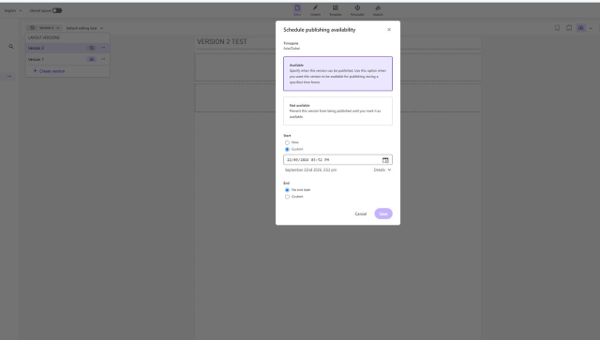
Once saved, the version list shows the schedule against version 2, while version 1 keeps the cloud icon that marks the published version.
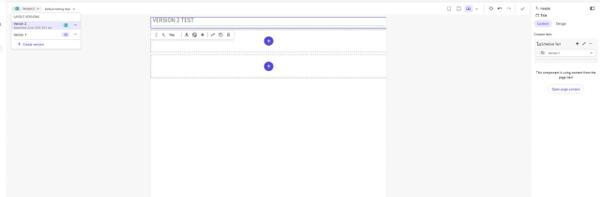
Before the Start Time
Open version 2 before its start time and the Publish button is greyed out, with a Scheduled badge beside it. This is the lock working: a version cannot be pushed live before its start time, even by accident.
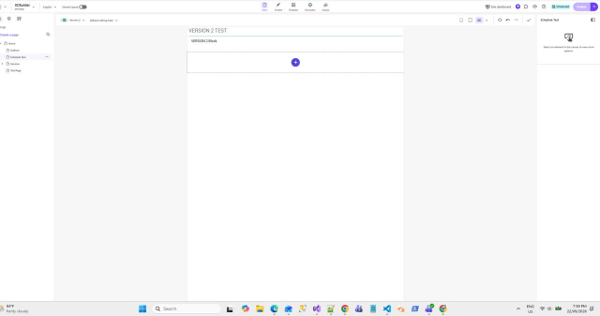
Publish is disabled while viewing a version that is not yet available.
A query against Experience Edge shows the same thing: "itemVersion": 1, the old title, and an empty main placeholder.
After the Start Time
The start time passes and nothing moves. Query Edge again, with nothing else touched, and it still returns "itemVersion": 1. The page changes only after someone clicks Publish, and Edge stamps that moment, not the scheduled one.
- 7:47 p.m. Version 1 published and live
- 7:59 p.m. Version 2 scheduled for 8:01. Publish button disabled
- 8:01 p.m. Start time passes. Edge still serves version 1
- 8:06 p.m. Someone clicks Publish. Version 2 goes live
The feature is a guard, not a timer. It stops a version from going live before its date, even if somebody publishes the site in the meantime. After that date, the version is merely eligible. Going live still takes a publish.
Media Availability
Media behaves differently. Upload an image, and before it is added to the page the picker offers an Availability section with a start and end date.
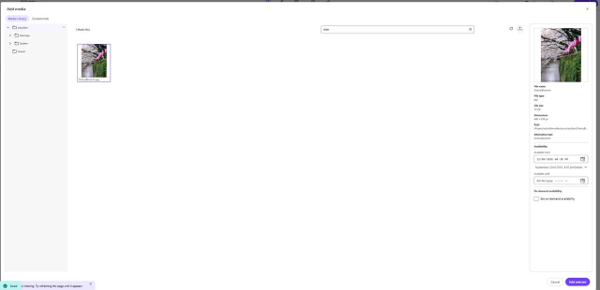
Set Available from to a time a few minutes ahead, add the image to the page, and publish before that time. The item then reports what will happen and when.
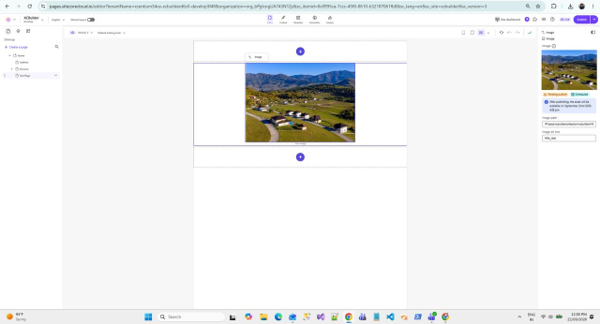
Statuses move from Pending publish, to Scheduled, to Live, and the note under the badge states the release time in local time.
At the scheduled minute, the image URL starts serving. No republish and no person is involved. Media scheduling does what the name suggests.
Questions That Came Up Along the Way
Can I cancel a scheduled publish?
Yes. Reopen the dialog from the version menu and change the start date, set it to Now, or switch the version to Not available. It applies as soon as you save.
So the real advantage is that the version is locked, and you just come and publish it?
That is exactly it. The value is protection, not automation. A draft can sit there for weeks while others publish the site around it, and it cannot slip out early. The go-live moment still needs an owner, whether that is a calendar reminder or a scheduled publish job.
What if I want to update the version that is live right now? Can I just edit and publish?
Yes. A version with no availability dates behaves normally: edit, publish, done.
What if I want to unlock a version and make more edits?
Editing is never locked, only publishing. A scheduled version can be opened and worked on at any time.
Why is the Publish button greyed out?
Because the version on screen is not available for publishing yet. Switch to one that is, or change the start date. A full site publish is not blocked. It simply publishes whichever version is allowed.