



The Optimization screen in SitecoreAI is where visitor data, audiences, and personalization come together. This post explains how SitecoreAI collects visitor data, how to track custom form submissions, and what that data can reveal about each visitor.
- Data collection: Visits, sessions, location, and device information are tracked automatically once a site language has an analytics identifier.
- Audiences: Visitors can be grouped based on the pages they view. Identifying who submitted a form and recognizing individual visitors requires custom form events and identity setup.
- Foundations: Identity rules and affinities provide the shared configuration behind audiences and personalization.
How Data Is Collected: One Switch, Then Automatic
Tracking is enabled per site language through an analytics identifier. To enable it, go to Channels → Site → Settings → Site hosts → Analytics and personalization and assign an identifier to each language you want to track. You can review all identifiers under Settings → Analytics identifiers.
Once the identifier is configured, SitecoreAI automatically:
- Captures page views, including site, page name, page variant ID, language, and time.
- Tracks sessions, visitor location, and device information.
- Creates an anonymous profile for each browser.
- Records submissions from SitecoreAI Forms.
Profiles: Everyone Starts Anonymous
SitecoreAI creates a profile for every browser that visits the site. Each profile shows its sessions, page views, location, device information, and top affinities. Until identity is configured, every profile remains an anonymous Visitor.
Tracking Custom Forms: A HubSpot Example
SitecoreAI automatically tracks submissions from its own SitecoreAI Forms in the Forms dashboard. However, custom or third-party forms do not automatically send submission events to SitecoreAI.
Custom form submissions can be tracked and reported under Analytics → Events.
The following example demonstrates how to track a HubSpot form submission. The same approach can be used for other custom forms.
HubSpot announces successful form submissions to the page through a global form event (hsFormCallback with onFormSubmitted).
A listener captures that event and sends a custom event to SitecoreAI using the Cloud SDK event() function.
import { useEffect } from 'react'
import { LayoutServicePageState, useSitecoreContext } from '@sitecore-jss/sitecore-jss-nextjs'
import { event } from '@sitecore-cloudsdk/events/browser'

function useTrackHubspotFormSubmission(portalId?: string, formId?: string) {
  const { sitecoreContext: { pageState, route } } = useSitecoreContext()

  useEffect(() => {
    // Skip the Sitecore editor and preview, so editors don't create fake submissions
    if (!formId || pageState !== LayoutServicePageState.Normal) return

    const onMessage = (e: MessageEvent) => {
      const data = e.data as { type?: string; eventName?: string; id?: string } | undefined
      if (data?.type !== 'hsFormCallback' || data.eventName !== 'onFormSubmitted' || data.id !== formId) return

      event({
        type: 'HUBSPOT_FORM_SUBMITTED',
        channel: 'WEB',
        page: route?.name,
        language: route?.itemLanguage,
        extensionData: { formId, portalId: portalId ?? '' },
      }).catch((err) => console.debug(err))
    }

    window.addEventListener('message', onMessage)
    return () => window.removeEventListener('message', onMessage)
  }, [portalId, formId, pageState, route?.name, route?.itemLanguage])
}
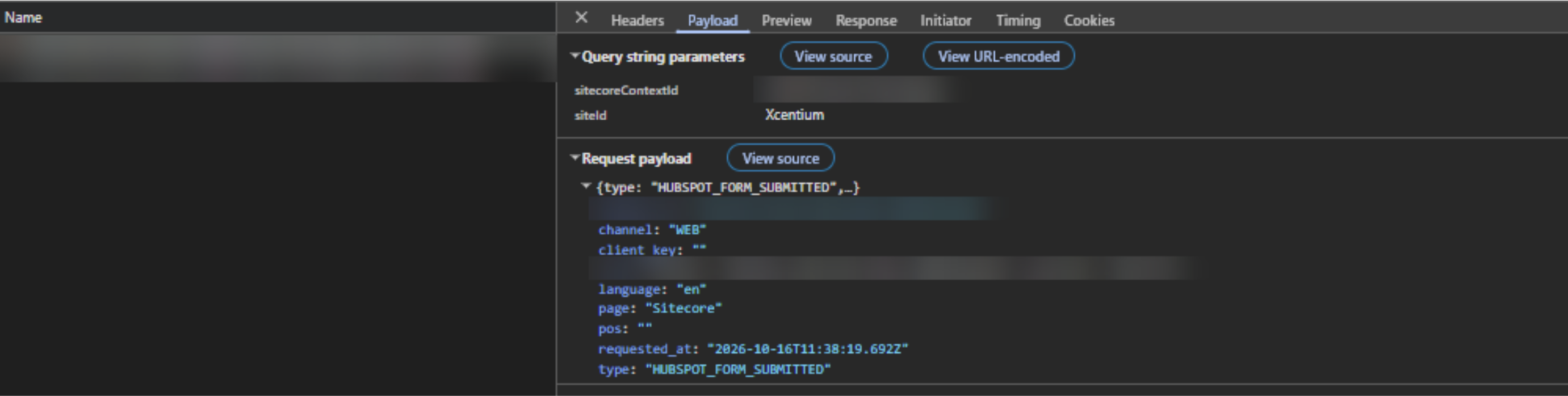
To verify tracking, submit the form with your browser's developer tools open. In the Network tab, filter by edge-platform. A request to the Sitecore events endpoint should return a 201 response, with the event type HUBSPOT_FORM_SUBMITTED and the page name included in the payload.
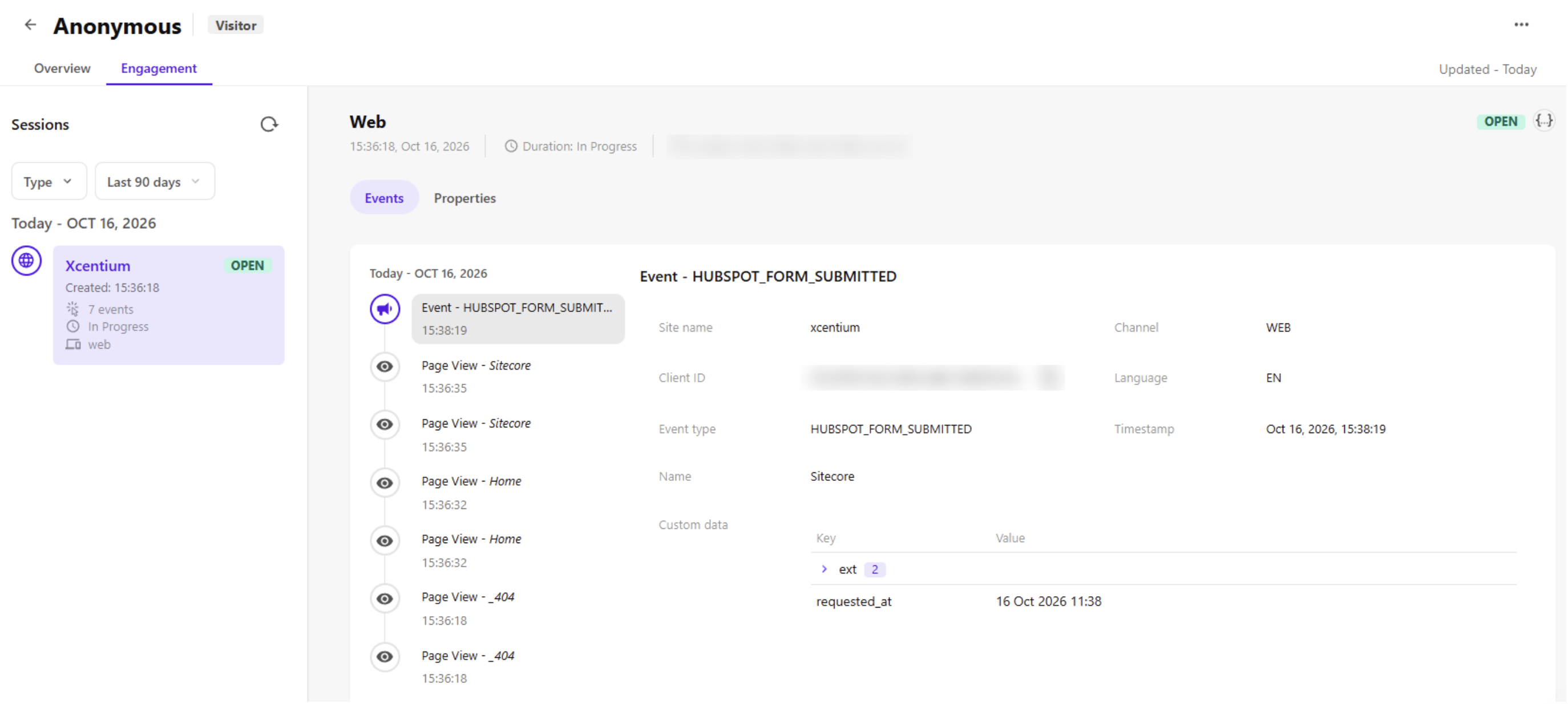
In Optimization → Profiles, open the visitor's profile and navigate to Engagement. The form submission appears in the session timeline immediately after the pages the visitor viewed.
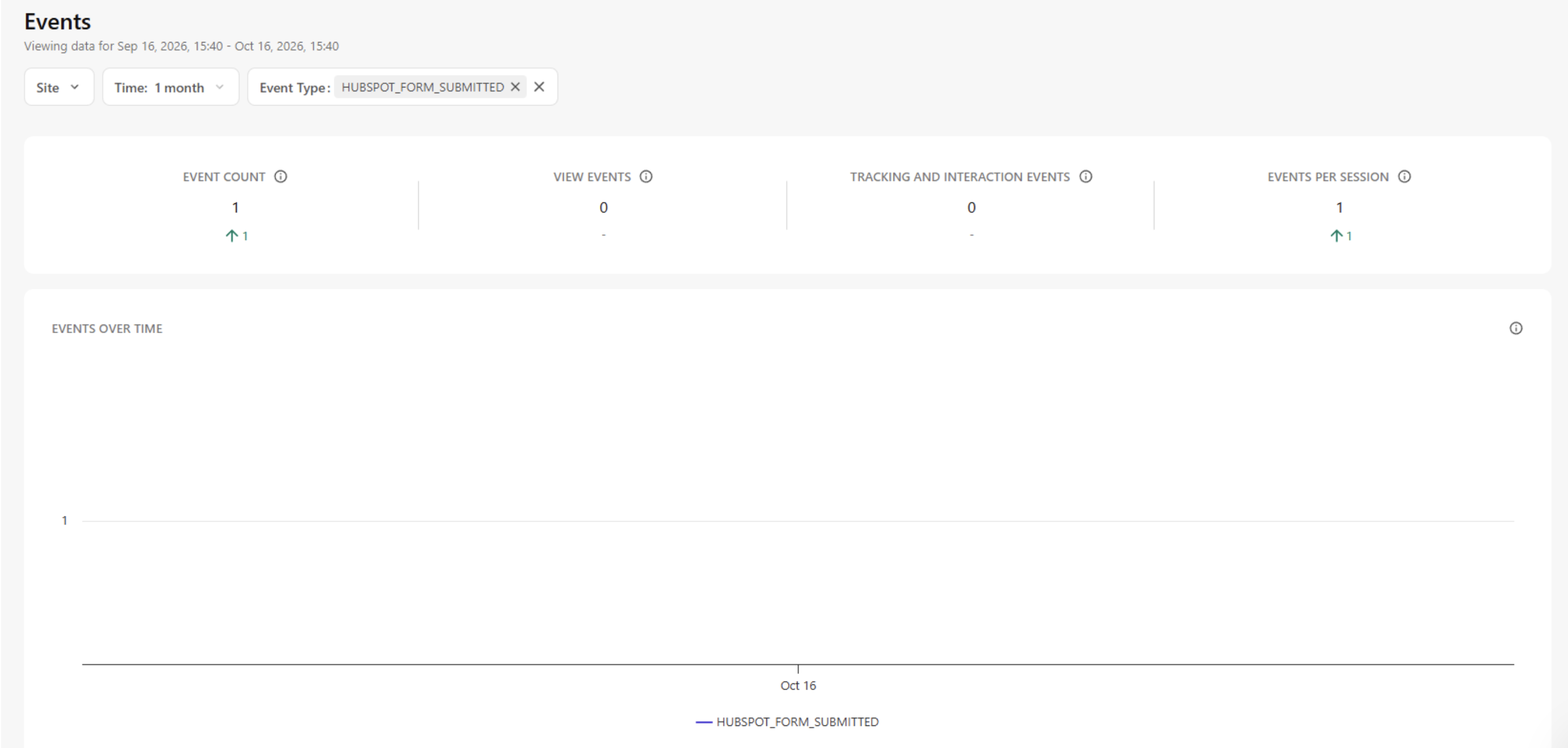
Analytics → Events displays submission counts over time. Filter by the custom event type to view submissions for this form.
Audiences: Groups That Work Without Knowing Who Anyone Is
The audience builder under Optimization → Audiences groups visitors, including anonymous visitors, using rules based on Profiles, Sessions, Events, and Affinities.
The AI Assistant lets users describe an audience in plain English and converts the request into audience rules. Audiences remain in Draft status until made live. Once live, audience membership is saved to visitor profiles and refreshed on a schedule.
Building an Audience of Form Submitters
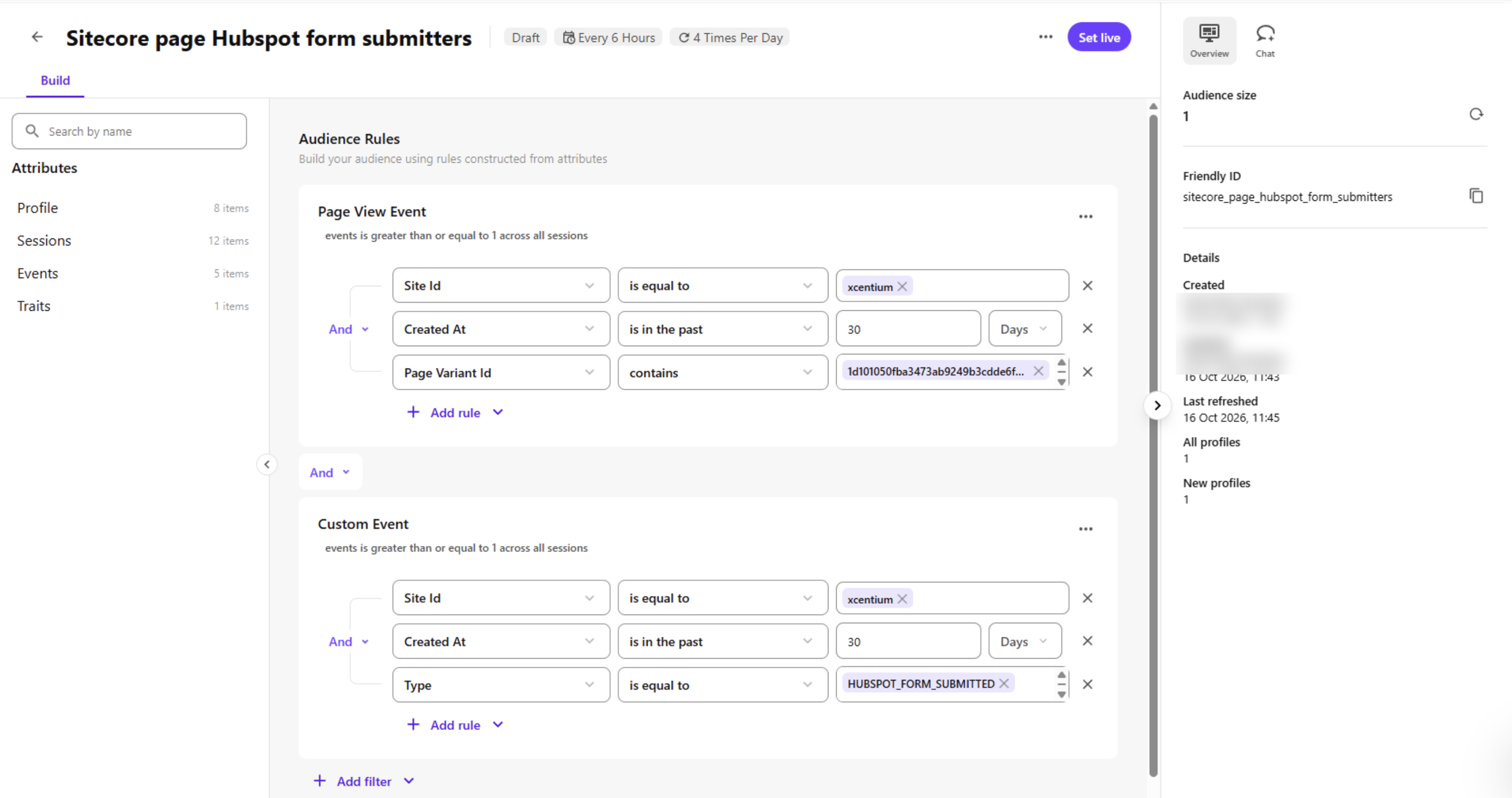
To identify visitors who viewed a specific page and submitted a form, ask the AI Assistant to find profiles that viewed the page and triggered a HUBSPOT_FORM_SUBMITTED event within the last 30 days.
The AI Assistant builds two filters joined by And:
- Page View Event: Page Variant Id contains the page's item ID.
- Custom Event: Type is equal to HUBSPOT_FORM_SUBMITTED.
Both filters are also limited to the site and the last 30 days.
If the same form appears on multiple pages, each submission event also records the page name. Add a rule where Name is equal to the page name in the Custom Event filter to build a separate audience for each page.
Identity Rules: How a Visitor Gets a Name
Identity rules under Optimization → Identity rules tell SitecoreAI which identifier, such as an email address or phone number, to use when matching visitors. These rules only work when the site sends an IDENTITY event containing the identifier.
When an IDENTITY event arrives and matches a rule:
- No existing profile with that identifier: The anonymous profile becomes Identified.
- An existing profile with that identifier: The visitor's activity is merged into the existing profile, and the duplicate profile is retired.
Audience rules and identity rules serve different purposes. Audience rules group visitors, while identity rules recognize them.
The identifier configured in the identity rule must exactly match the provider value sent by the code, such as email.
At least one identity rule must always exist. A single existing rule cannot be deleted until a second rule is added.
Sitecore requires a support case whenever a new identity rule is created so that visitor profiles can be reindexed.
Affinities: Interest Scores From the Pages People Read
Affinities measure each visitor's interest in specific topics based on the tagged pages they view. These scores can support personalization and audience creation, even for anonymous visitors.
Affinities can be configured without code under Optimization → Affinities by adding a name and value to a page, such as platform = sitecore.
Affinity scores are saved to the visitor profile when the session ends and retained for 30 days.
Headless and Triggered Personalization
Headless personalization allows SitecoreAI to determine what a visitor should see and return the result as data that another application can display, such as a website, mobile app, or kiosk. It can be tested using the Preview API without writing code or publishing.
Triggered personalization sends visitor data to another tool when a specific event occurs. For example, form submission details can be passed to a CRM or email platform to initiate an automated follow-up.