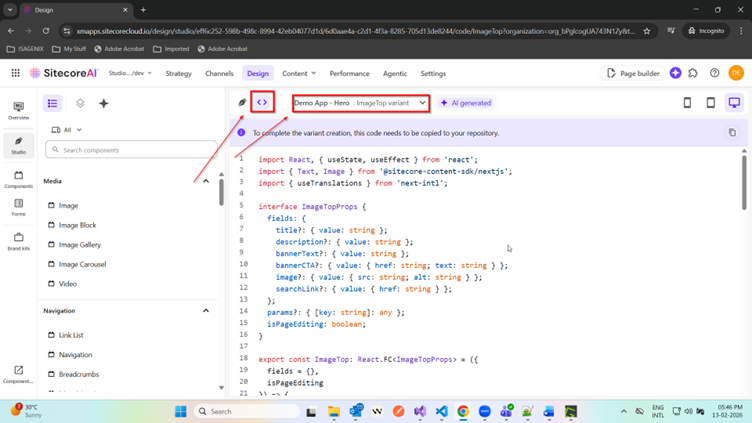



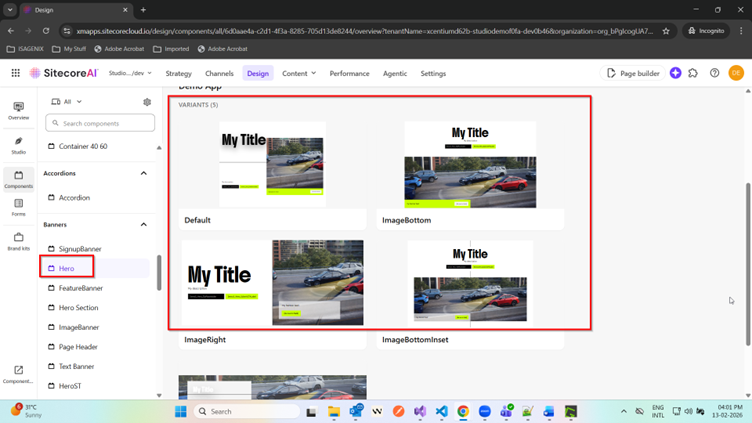
In Design Studio, you can visualize a component along with one or more of its variants, allowing you to preview different layouts and configurations before using them in Page Builder. You can test the component using default field values or enter custom values to see how it behaves in different scenarios.
Design Studio also provides AI assistance, enabling you to modify existing variants or create entirely new ones. These variants can be saved for future use, making experimentation fast and efficient. You can also view the underlying variant code and make temporary edits to instantly see the impact on the design preview.
This capability is extremely valuable for both designers and developers. Teams can validate a component’s look and feel — including all its variants — in real time before promoting it to Page Builder. The ability to visually refine variants and iterate within the same environment significantly accelerates the design and development workflow.
Component Data Source Templates
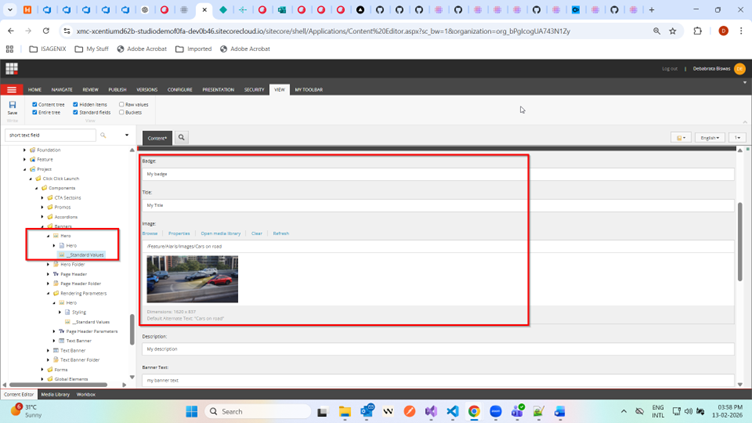
You can provide standard values in a component data source template, and these values will be visible when viewing a component variant in Design Studio.
Data source template for the Hero component:
Component view for the Hero component:
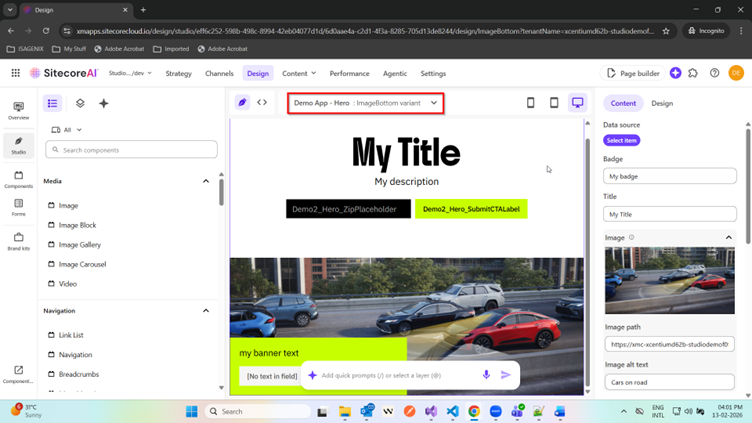
Studio view for the Hero component (ImageBottom variant):
Visualization Values and Visualization Data Sources
If standard values are not defined for a component data source template, you can use Visualization values instead. These values act as default mock values for components when no template standard values are provided.
Visualization values can be entered for various field types as shown below.
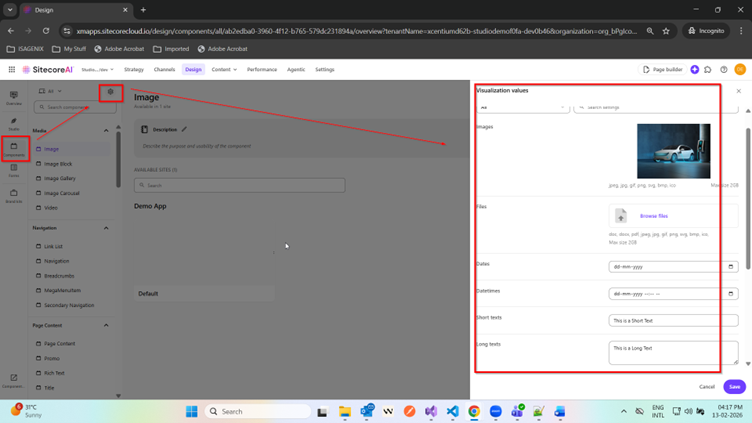
Clicking the gear icon allows you to enter default values for different field types. When you save these values, Design Studio automatically stores them in mock data sources known as Visualization data sources.
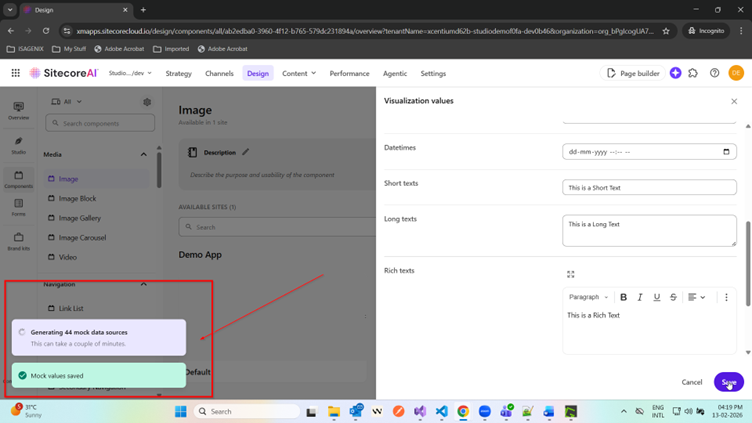
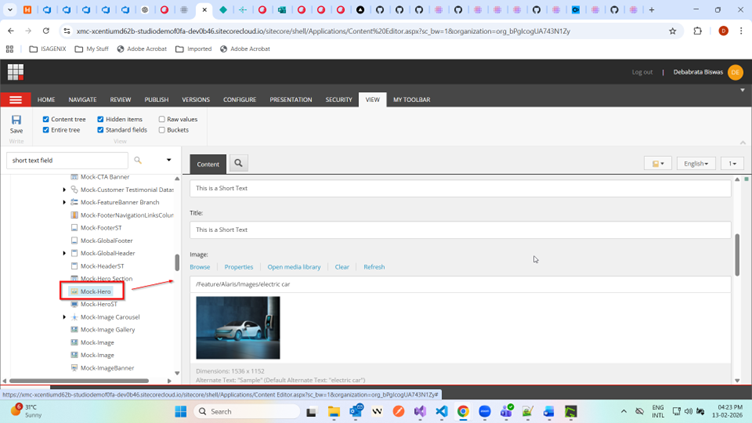
These Visualization data sources are used only for Design Studio component visualization. They are stored at:
/sitecore/system/Settings/Foundation/Design Library/Data Sources
Depending on the field types, you may see the same visualization values applied across component mock data sources. These values can also be modified as needed.
These values appear in Design Studio when no standard values are provided for component data source templates and the Visualization data source is selected.
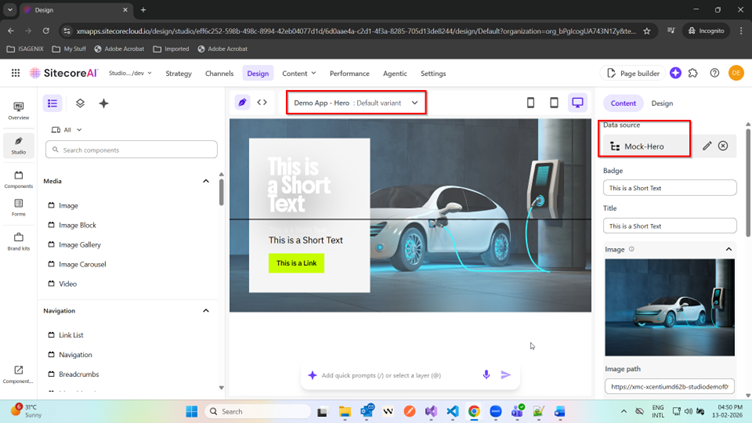
At any time in the Studio view, you can override component values by deselecting the data source and entering values directly in the configuration panel.
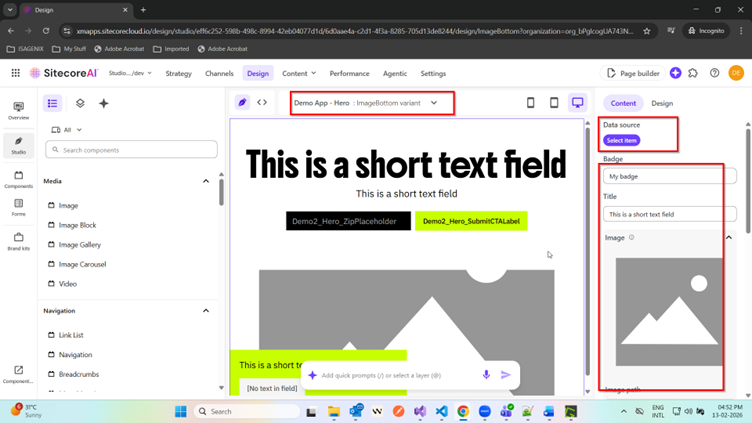
Creating a New Variant for a Component
While viewing a component variant in Design Studio, you can use AI to generate a new variant. The AI assistant can help create different layouts based on prompts.
You can refer to the official documentation for more details on generating variants using AI: Generate a variant.
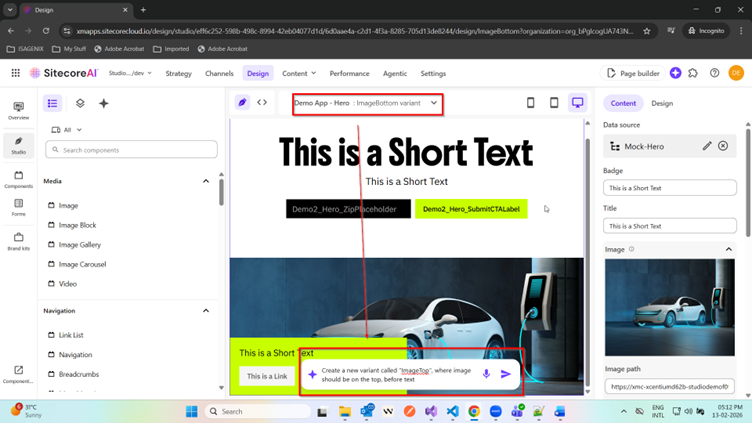
Depending on the desired layout, you may need to refine the AI prompt or retry multiple times until the output matches your expectations.
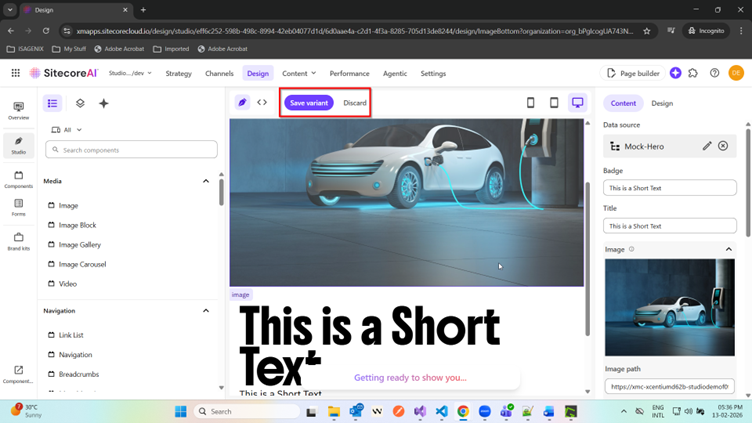
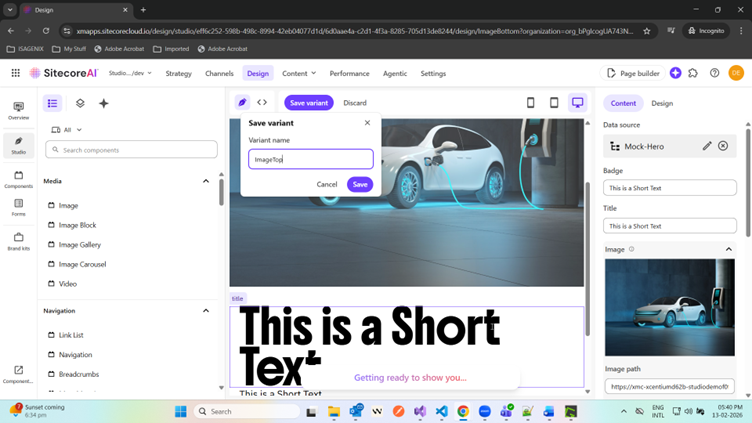
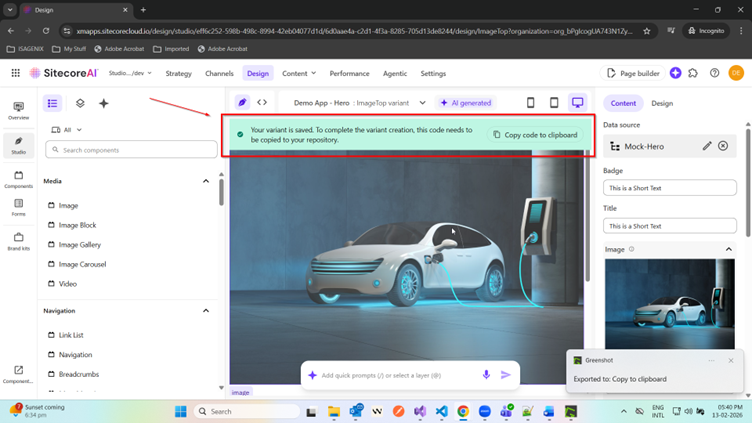
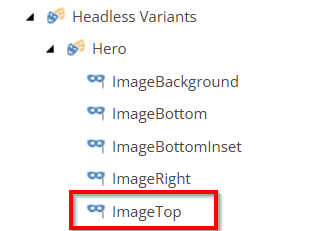
You can save the generated variant and modify its code if needed. Once saved, the variant appears under Headless Variants in the Content Editor.
Design Studio also provides the option to copy the generated variant code so it can be added to your repository.
Modifying Variant Code
In Design Studio, you can view and edit the code of any variant directly from the Studio view. This allows you to experiment with layout changes before copying the final version to your repository.