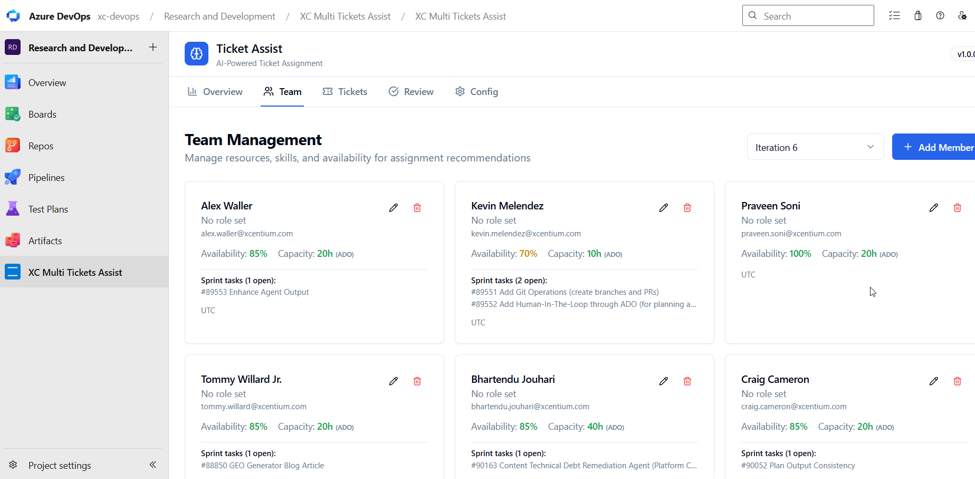



Project Managers and Technical Architects spend a significant amount of time reviewing requirements, gathering domain knowledge, estimating effort, identifying risks, assigning work, and enriching Azure DevOps tickets before development can begin. This manual process often leads to inconsistent ticket quality, estimation inaccuracies, delayed sprint planning, and suboptimal resource allocation.
XC Ticket Assist addresses these challenges by using AI to analyze selected work items and generate implementation-ready recommendations, including summaries, domain context, implementation steps, risks, story point estimates, and resource assignment suggestions. Project Managers can review and refine the AI-generated output before synchronizing it back to Azure DevOps, resulting in higher-quality work items, faster backlog grooming, more consistent planning, optimized resource utilization, and accelerated delivery.
Introduction
XCentium has developed XC Ticket Assist as a native Azure DevOps extension that seamlessly integrates into the Azure DevOps work item experience. The solution enables Project Managers and Technical Architects to analyze and enrich a single work item, multiple work items, or an entire Azure DevOps query using GenAI.
There are two ways to initiate the analysis. For individual work items, users can click the three-dot menu on a work item and select XC Ticket Assist. For bulk analysis, users can select XC Multi Tickets Assist from the left-hand navigation menu. This global interface allows users to enter multiple comma-separated work item IDs or select an existing Azure DevOps query from the organization's Queries library.
How It Works
There is a frontend module that shows the panel/form. There is also a backend module that is responsible for interacting with Azure DevOps and Azure OpenAI. The frontend interacts with the backend to get the job done.
How to Use
- For individual work items, click on the three dots for the work item and then click on XC Ticket Assist, as shown below.
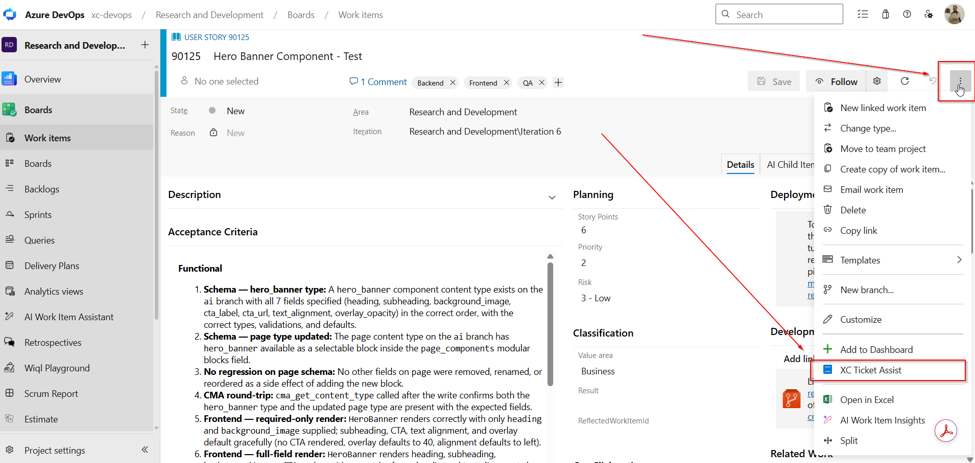
Opening this way will have the work item context already pre-filled, as you will be directly taken to the Tickets tab and can start analysis by clicking on the Analyze Pending button. Before clicking on Analyze Pending, you can visit the Team tab to review the resources available for the work item sprint, or any other sprint for which resource availability/capacity is defined.
- For bulk ticket analysis, users can select XC Multi Tickets Assist from the left-hand navigation menu, as shown below.
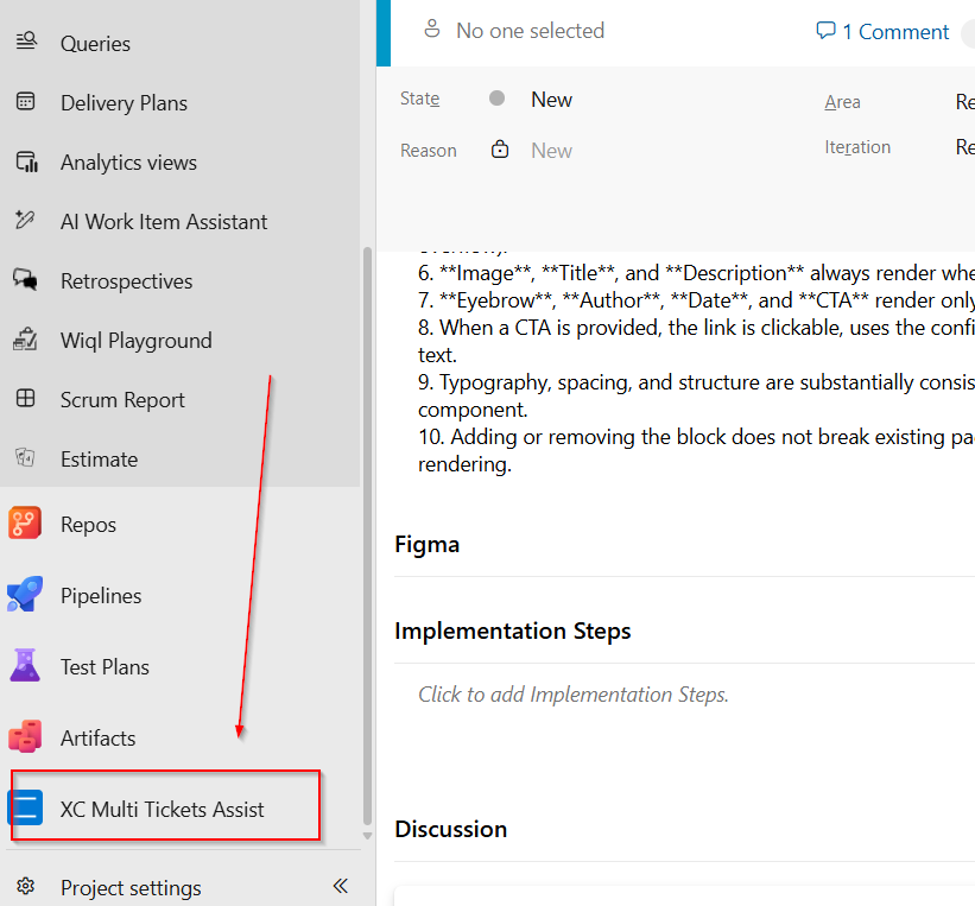
This works at the global level and will enable you to enter multiple comma-separated work item numbers or select a query from global Queries in Azure DevOps. Clicking on Analyze Pending will then perform analysis for one or more work items and show the results in the Review tab.
You will be redirected to the Review tab when analysis results are ready for review.
Note that although the ticket sprint iteration might be different, the pre-selected sprint iteration will depend on the sprint definition that contains resource availability/capacity defined.
When opening from the work item three dots, the panel opens with the ticket number already prefilled. You can then click on the Analyze Pending button to start the analysis, as shown below.
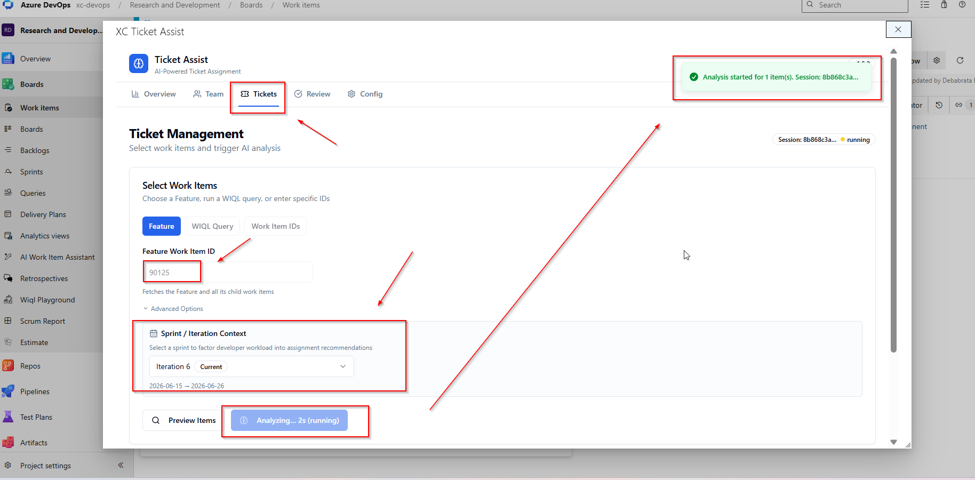
After the analysis is complete, you will be redirected to the Review tab and you should see a clickable session with a timestamp, as seen below.
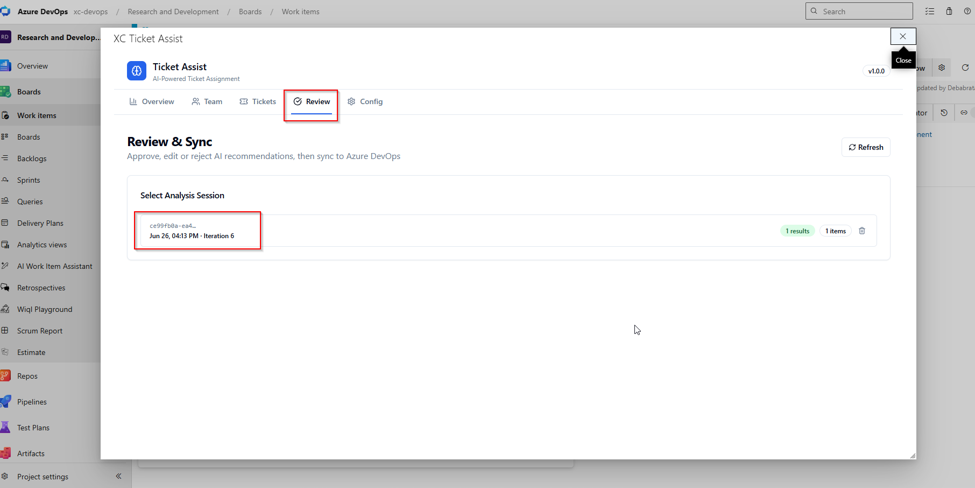
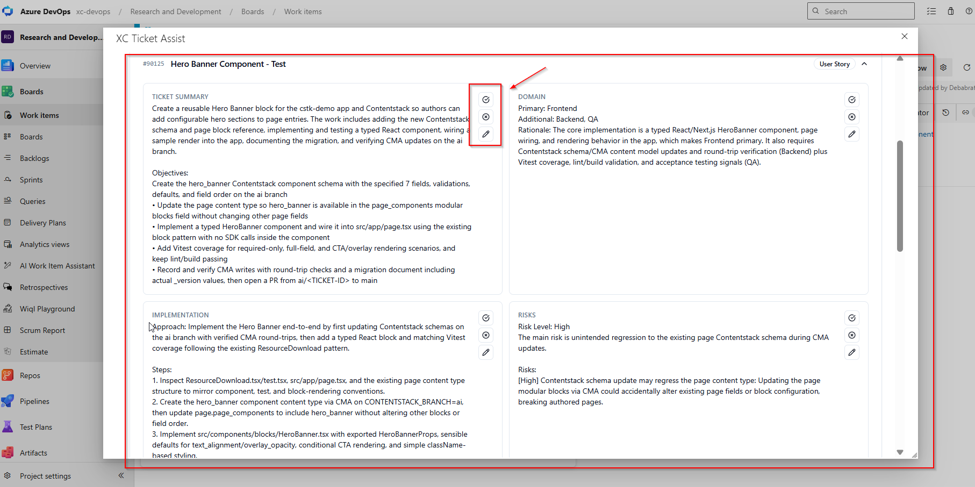
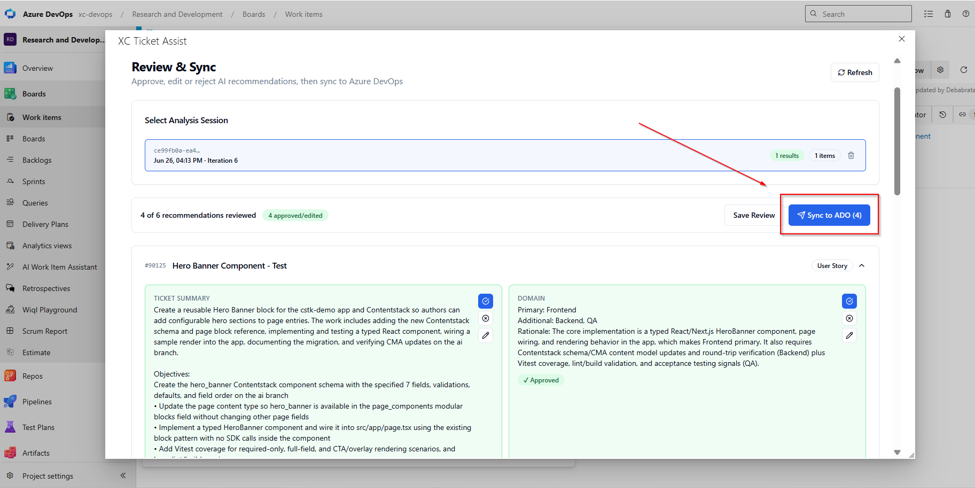
Clicking on the session will show you the analysis results, as seen below. There are a total of six sections of information:
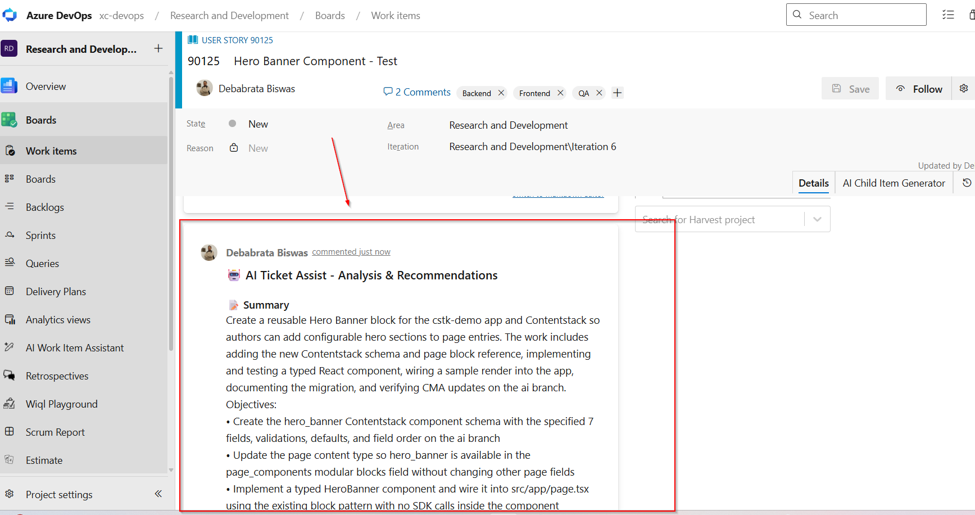
- Ticket Summary: A brief description of the task. These appear in comments for the work item after an Azure DevOps sync operation.
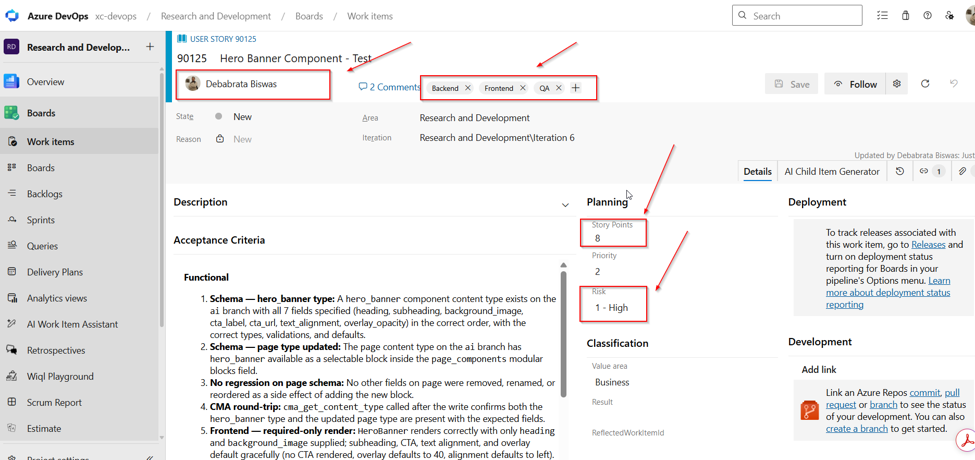
- Domain: This is domain knowledge needed for the ticket. This will appear as tags for the work item after a sync operation.
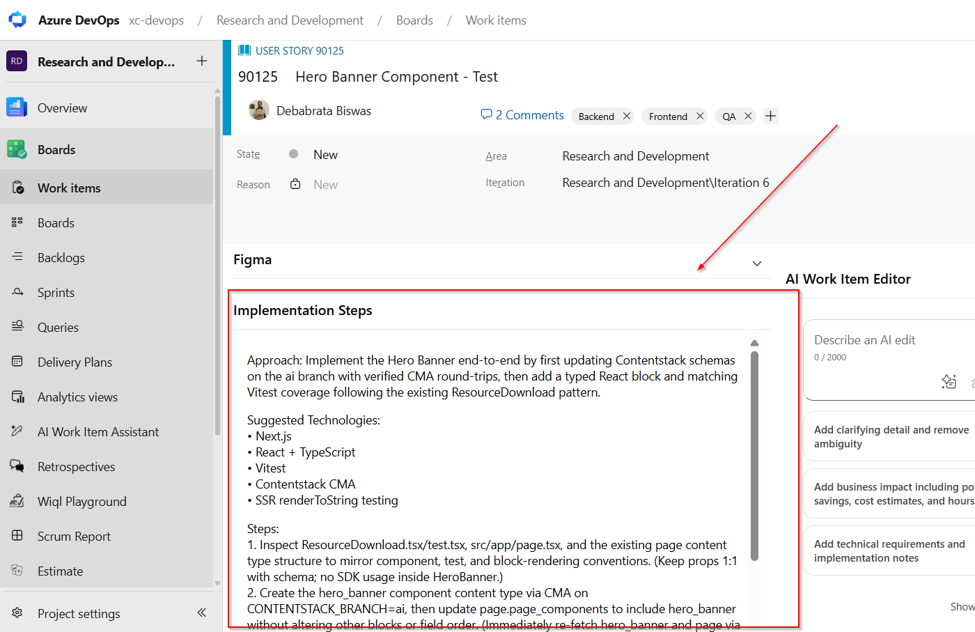
- Implementation: This will have all the necessary steps needed to implement the work item and will show up in the Implementation Steps field of the work item after a sync operation.
- Risks: This will provide information on risks, if any, for the work item implementation. The selected Risk Level will appear in the Risk field for the work item upon a sync operation.
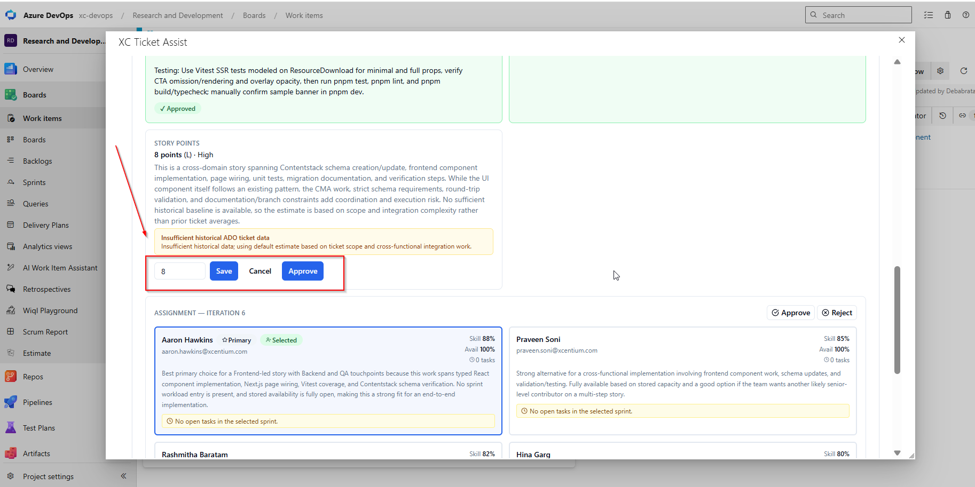
- Story Points: This will be computed based on historical ticket information in Azure DevOps. If there is no such data available, it will suggest a point. It will also enable you to change the story point you desire.
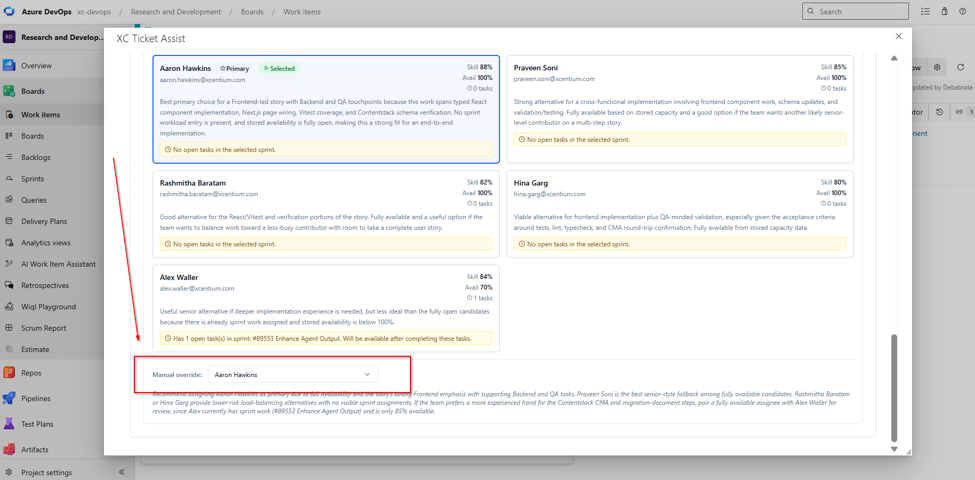
- Assignment: This will suggest a resource for this work item, but you can change the assignment. There is also a dropdown selection available for the desired resource.
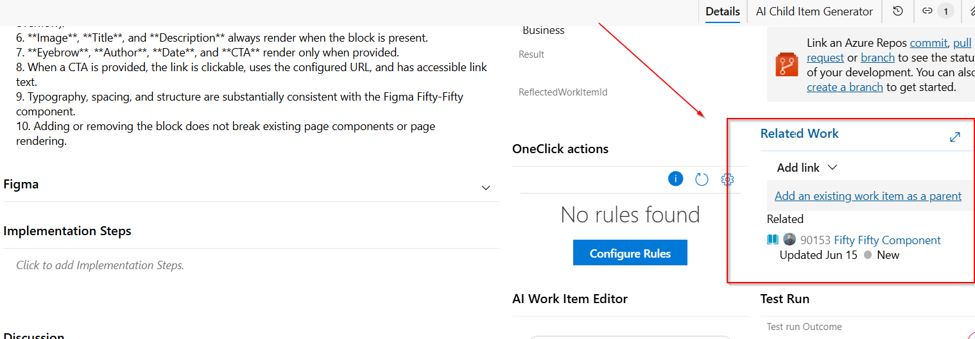
In addition to the above, if there are related or dependent work items found, they will be marked in the Related Work section of the work item.
Each of these sections has provision to approve, edit, or reject the content. Only the ones that are approved or edited will be updated on the work item upon an Azure DevOps sync. See below.
Once you are ready, you can click on Sync to ADO, which will then update the work item.
The work item will now reflect all the synchronized information from review, as seen below.